 Northern Commander
Tips
Each tip is one small thing you might never come across on your own. Those with an animation have a page of their own showing them working, and more about them.
In the panes
- ⌘IGet Info works out a file's checksums, and tells you whether they match one you paste in.
- Clean up disk spaceDisk full? Clean up disk space puts a measured tree beside a pane sorted largest first, so the heavy folder is two arrows away — and you can delete it right there.
- ⌘BGathering files from all over the disk? Each press adds the file under the cursor, or everything marked, to the collection you used last; open the collection in a pane to copy it all at once.
- ⌥F3The same file in both panes? One key compares the two, change by change, with the words that were edited picked out.
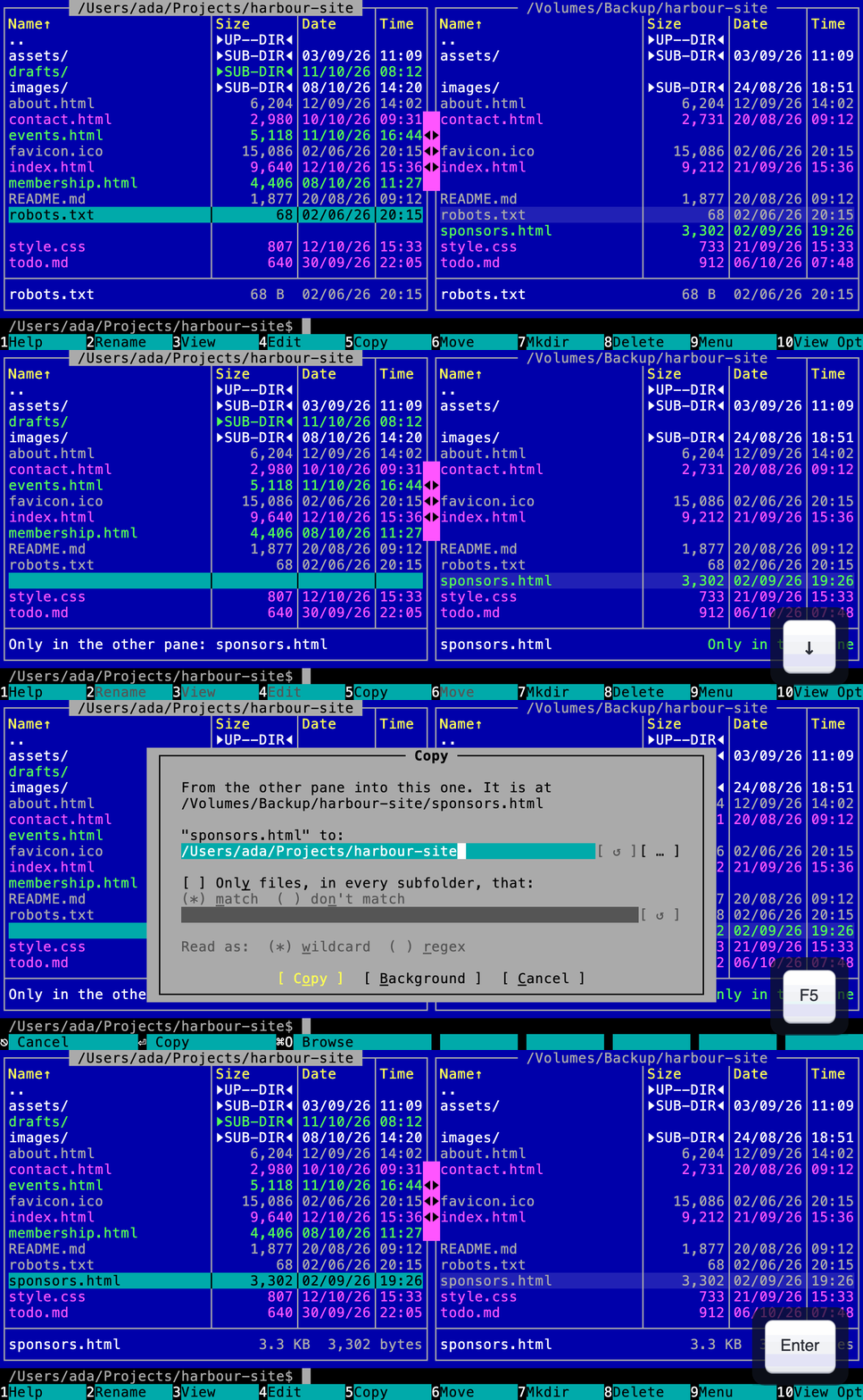 ⌃⇧SIn live compare a blank line is a file the other side has and this one lacks. Copy, with the cursor on the blank line, brings it across.See it working
- ⌥⌘CCopy the paths of the marked files as text, one per line, ready to paste into a terminal or a message.
- ⌥⌘EEject a disk from wherever you are, or tick several. If one is in use, it says which programs, and can quit them and try again.
- ⌘KEvery action is searchable by name, with its key beside it — including the ones that cannot be done right now.
- ⌘DKeep the folder you are in as a favorite, and the first nine are a numbered chord away from then on.
- ⇧⌘EnterGive the pane you are working in the whole window, and the same key shares it again.
 Hold Shift, Option or Command and the key bar changes to show what each function key does with it.See it working
- ⌘TA pane can hold several folders as tabs, each with its own cursor, marks and history — and they are all back after a restart.
- +In a pattern, whatever follows a | is left out: *.jpg|IMG_* marks every JPEG except the camera's own names.
- ⌥F1Every place in the places list has a single key of its own, so the second time you go somewhere you need not read the list.
- ⌃QOne key turns the other pane into a preview of whatever the cursor is on. Flip down a folder of photos and each one is shown as you reach it.
- F2A list of processes in order of how busy they are keeps moving under the cursor. One key holds every row where it is while the figures go on changing.
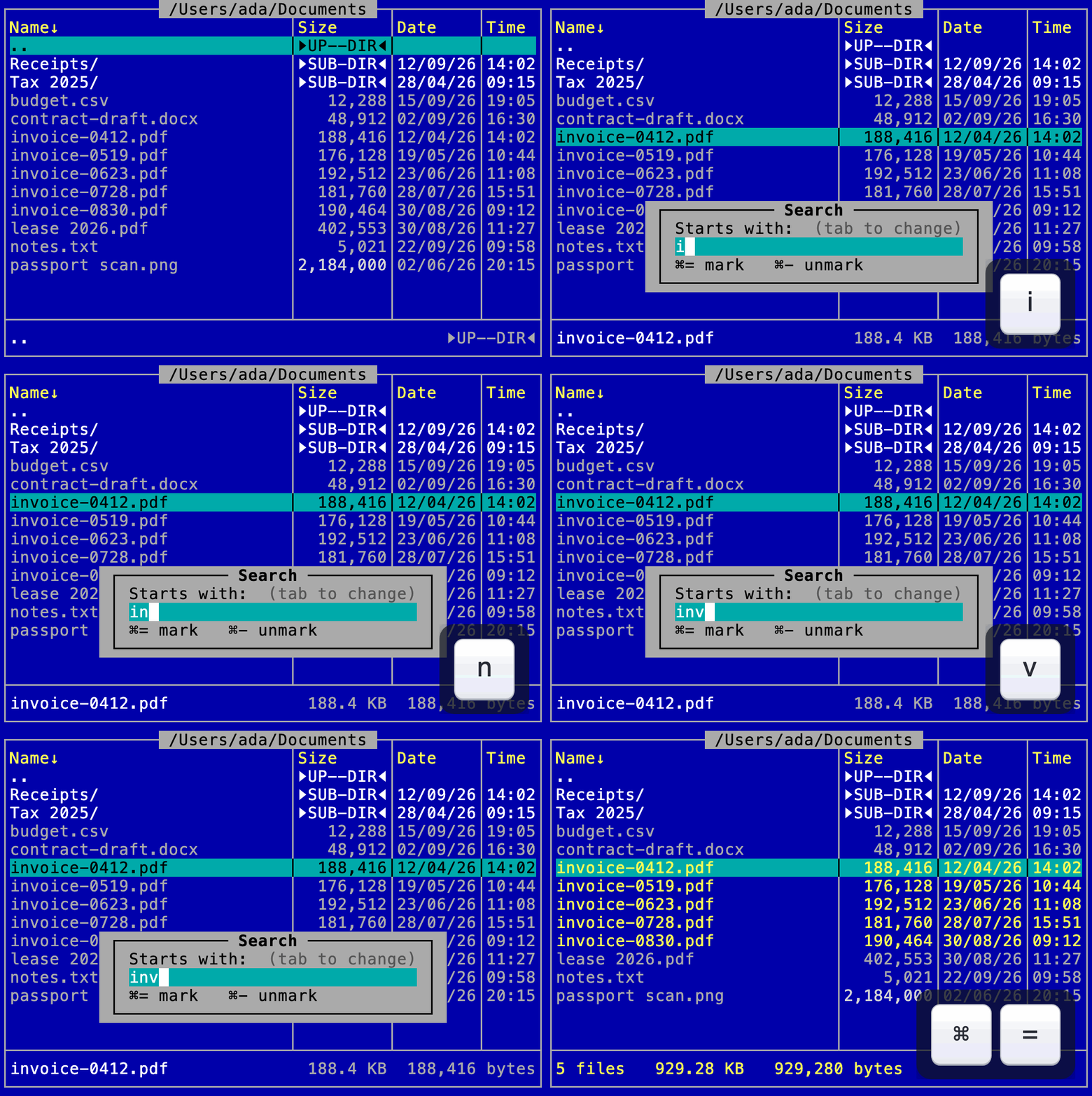 Type the start of a name in a pane, then press ⌘= to mark every file the quick search found.See it working
- F10Turn on size bars in the view options and every size gets a bar behind it, so the large files stand out without reading a number.
- ⌘IGet Info says how much room a folder really takes on the disk, and how much of a cloud folder has been downloaded — without downloading any of it.
- ⌘YThe system preview stays up while you move and mark, so a folder can be walked, looked at and marked in one pass.
- F5The Trash is a pane like any other, and each row says which folder it came from. One key puts it back there, under the name it had.
- ⌥→On a folder, one key opens the folder tree starting right there, so a deep project is a tree of its own and not a corner of your whole disk.
- F8In the Applications pane, the key that deletes uninstalls instead, listing what the application left in your Library, so nothing of it lingers.
- F10View options opens everything that can be changed about what you are looking at — in the panes, the viewer, the editor and the terminal.
Copying, renaming and deleting
- ⇧F2Rename a whole shoot at once: IMG_* to harbor-[C] numbers them 01, 02, 03 — and every new name is listed beside the old one before anything changes.
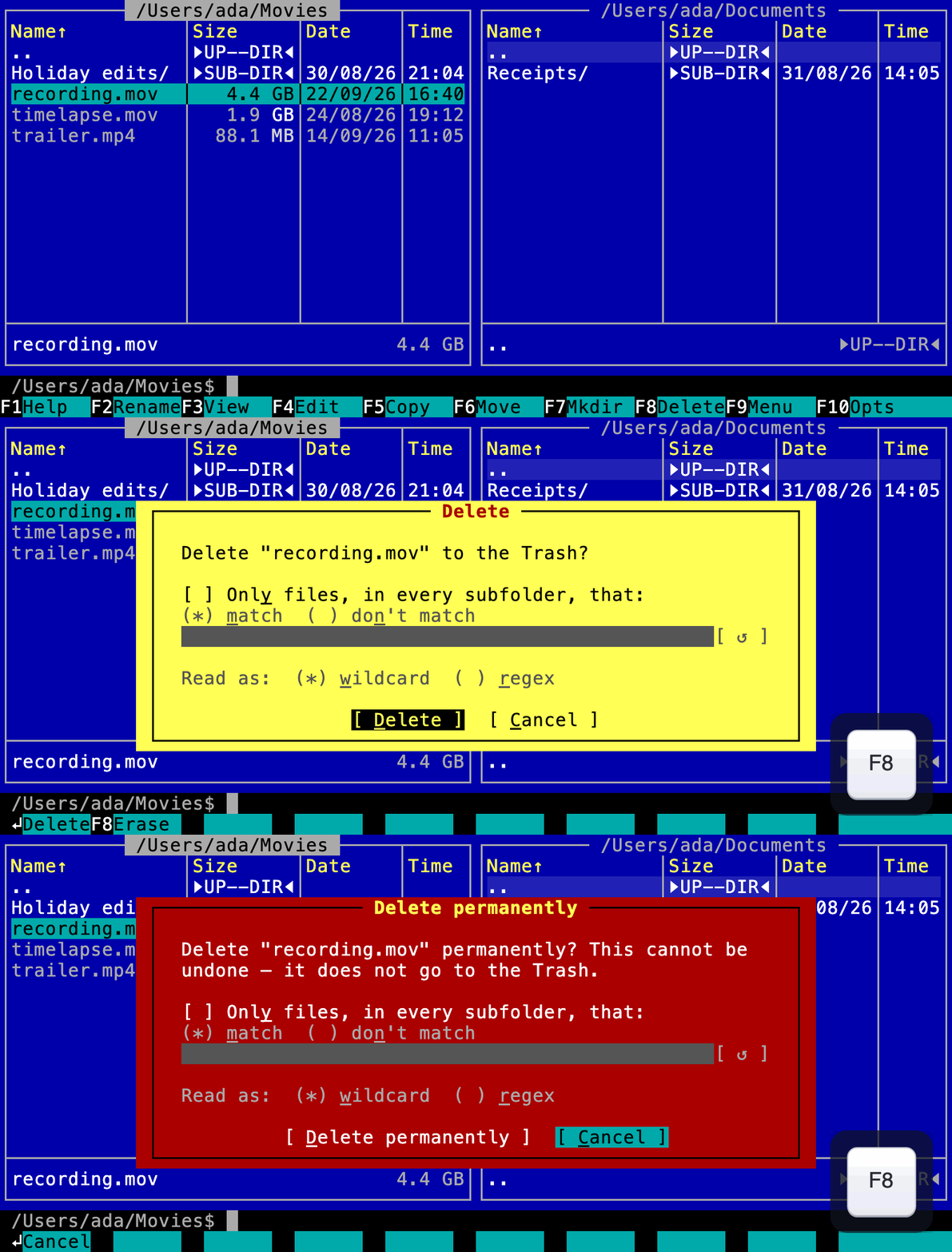 ⇧F8Press Delete again while its question is up to reach deleting permanently — it still asks before anything goes.See it working
- ⌥F6No need to go inside an archive to empty it: one key extracts the whole thing, or every archive marked, each into a folder of its own when it holds more than one thing.
- ⇧⌘JThe journal lists every change made to the disk since the application started, and says which could still be undone.
- F5Preview on the copy dialog shows which files are already there and whether each is older or newer — and Overwrite older replaces only the ones that are out of date.
- ⌃AChange permissions for everything inside a folder in one go — only the folders, only the files, or both.
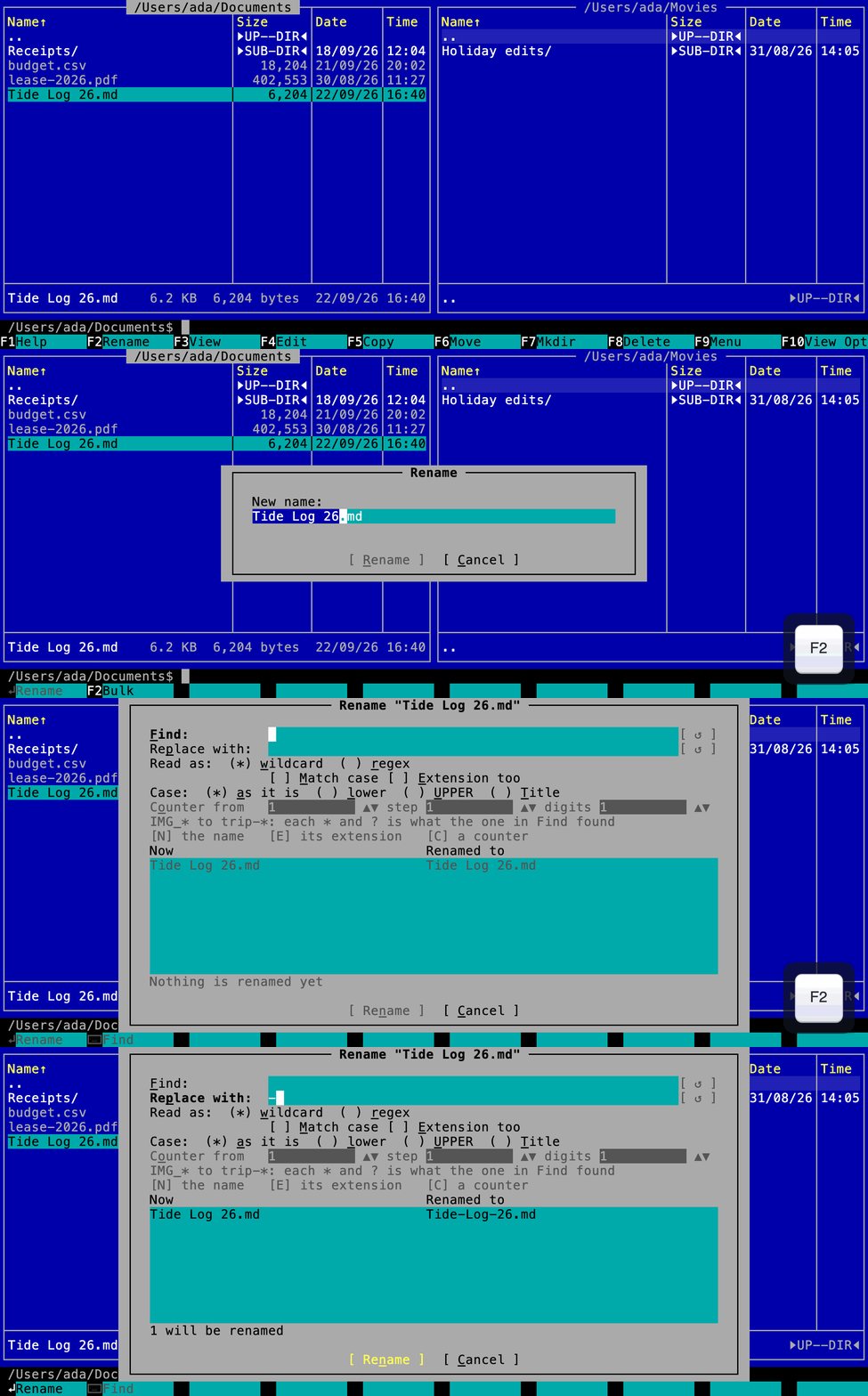 F2Press Rename twice in quick succession and the second press renames from a pattern instead: swap every space for a hyphen, or put a name in lower case, without retyping it.See it working
- ⌥⌘VThere is no cut: one paste copies and the other moves, so nothing leaves its folder until the move has landed.
In the viewer
- F6In the viewer, show only the lines that match — it turns a long log into the part you were looking for.
- F4Looking at a file's bytes, search for bytes too: 4D 5A finds exactly those two, whatever the file is.
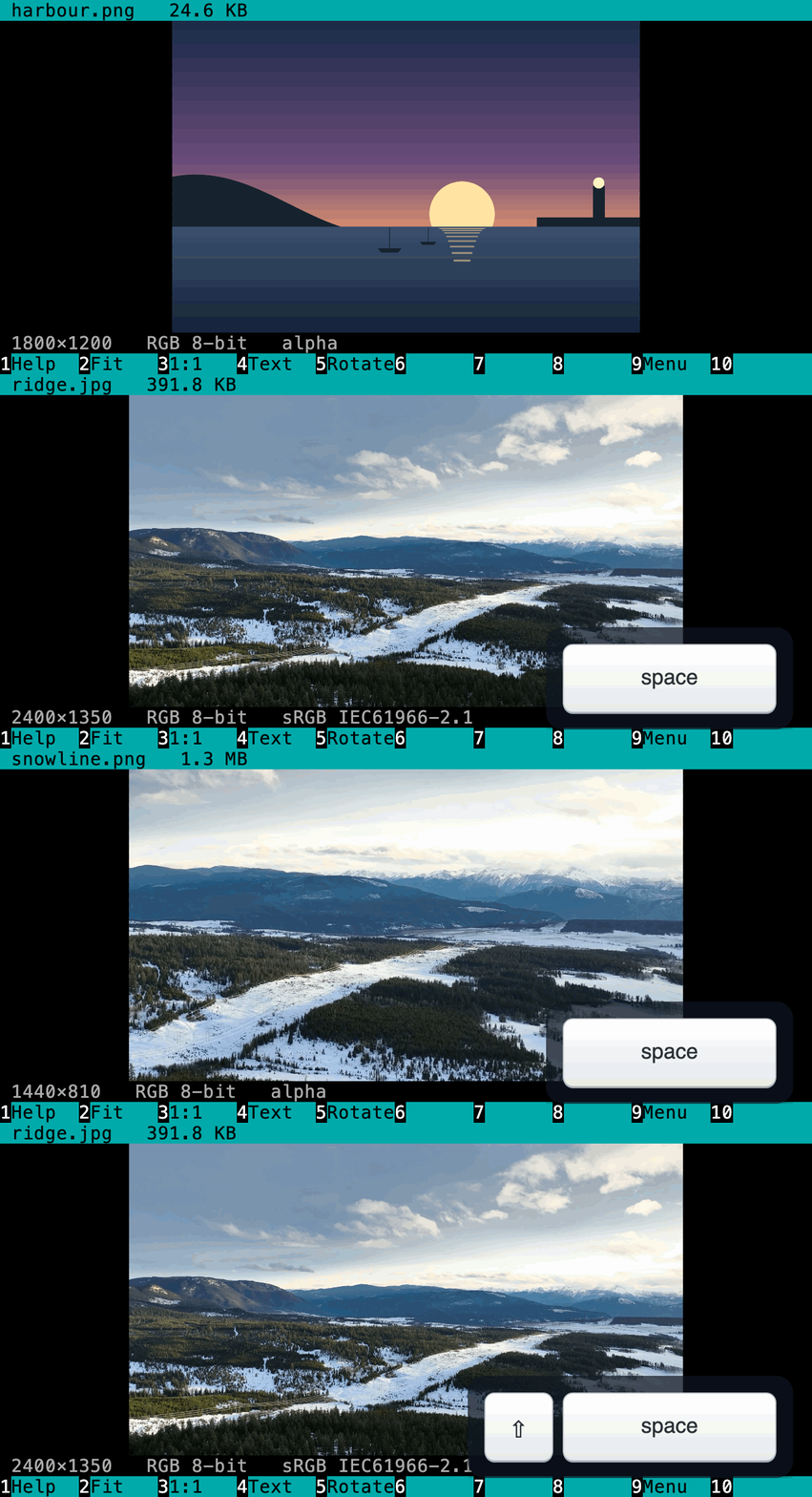 ⌥→Viewing a file, go straight on to the next one in the folder — a picture, a table or plain text, each shown as what it is.See it working
The clipboard
- ⌃VWhatever is on the clipboard — copied text, JSON, a picture — opens in the editor or the viewer with one key.
- ⌃VCopied a table or some JSON? One key opens the clipboard in the editor as a table or a tree — change it and put it back, without it ever touching the disk.
- ⌘VPaste copied text or a picture into a pane and it becomes a file there.
Searching
- Find duplicate files…Running out of room? Find duplicate files lists the files you hold twice, grouped, without changing or deleting anything.
- ⌘EFrom a search result, open its folder in the other pane with the cursor on it, and keep the results where they are.
- ⌘FSearch results can become the pane itself, so you can copy, delete or view them like any other files while the search carries on.
The terminal
- ⌘F8Pin the commands you type often, and they stay at the top of the command history, ready to finish and run.
- ⌘F3Open what the last command printed in the viewer, where search, filtering and go-to already work.
- In any terminal, ncmd . opens the folder you are in, and ncmd edit --wait makes it the editor git asks for.
- Put the terminal in one pane's place from the places list, and the shell and the pane beside it follow each other from folder to folder.
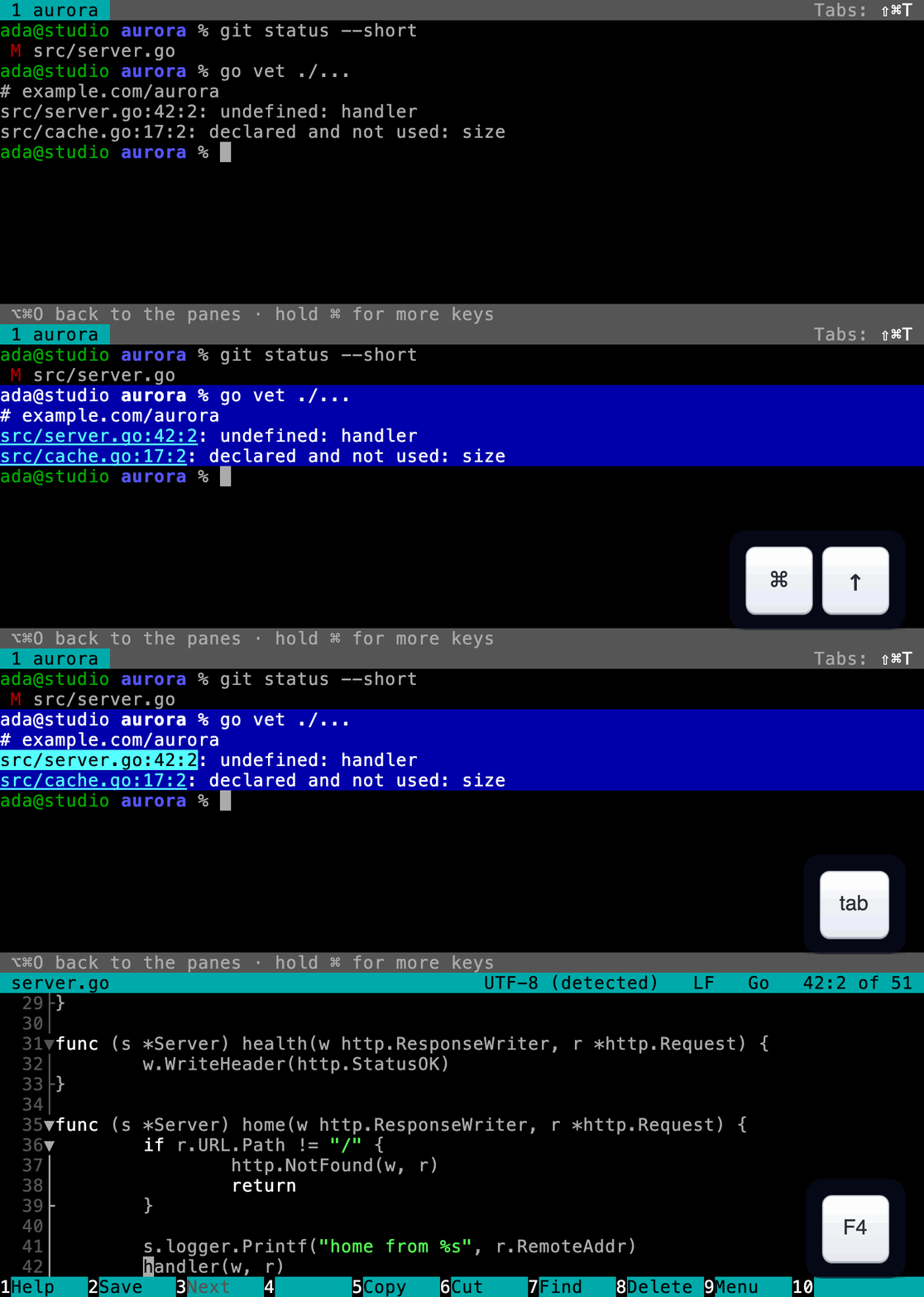 Highlight a command in the terminal and every file name in its output is underlined — Tab to one, and F4 opens it at the line it named.See it working
Making it yours
- Dates read the way you write them: they follow your Mac's region, or one of seven forms you pick in the settings.
- ⇧⌘=Make everything larger or smaller at once — the panes, dialogs, viewer, editor and terminal share one font size.
- Sizes show every byte where there is room and round where there is not — or pick one in the settings and every pane writes them that way.