 Northern Commander
Panes and navigation
Two listings side by side, and every folder you use a key or two away.
One side is where you are. The other is where things go.
No windows to arrange: Tab moves between them, and ⌘U swaps them round.
New in 1.2 · Collections
Files from anywhere, gathered in one place
⌘B puts the file under the cursor, or everything marked, on a collection: a list of files from all over the disk, kept until you delete it. With one open in the other pane, each press adds to it. It works like a folder — view them, copy them all somewhere, delete them all — and a file you move or rename stays on it. ⌥F8 takes a row off and leaves the file alone.
Getting there
Every folder you use, a key or two away — and every one you've been to, a key back.
Places, favorites and paths
⌥F1 lists every disk and your usual folders, each on a key of its own. The first nine favorites are ⌘1 to ⌘9, and ⌘G offers the folders a path could become as you type it.
Type to find
Start typing and the cursor is on the first name that begins with it; the arrows step through the rest that match, Tab looks inside names instead, and * or ? make a pattern.
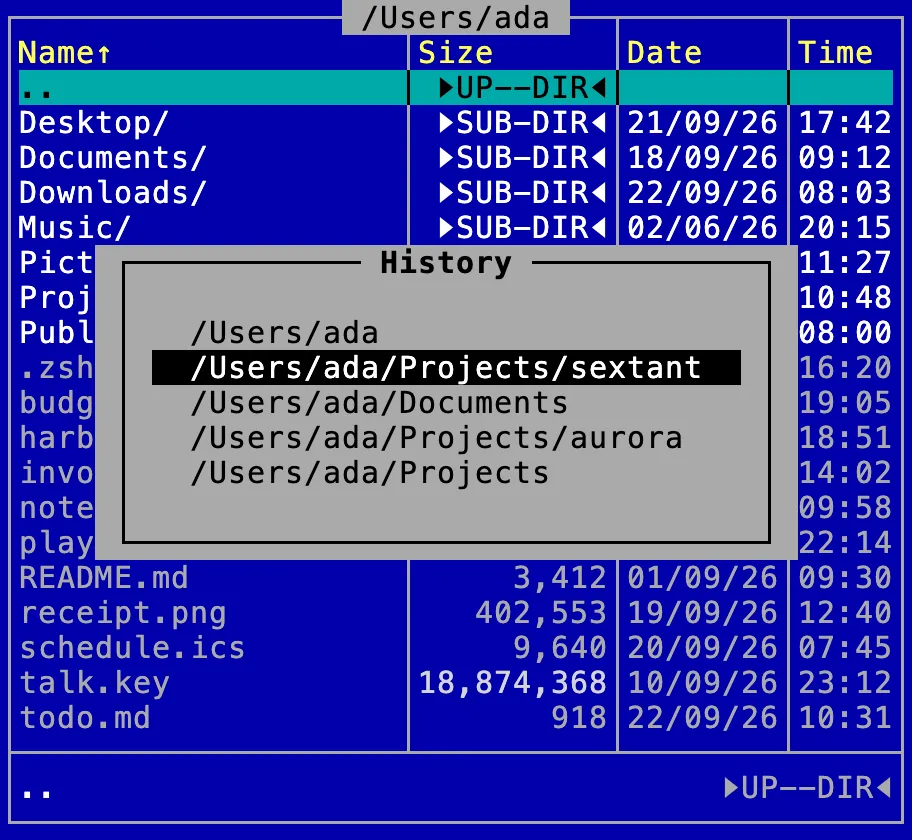
Back, forward, and everywhere before
⌘[ and ⌘] work like a browser's, and ⌥⌘[ lists everywhere the pane has been, newest first, narrowed as you type — and kept for next time.
Tabs in a pane
⌘T keeps the folder you're in and opens another beside it. Each tab keeps its own place — folder, cursor, marks, view and history — and ⇧⌘T lists them all, each on its number. Quit, and they're all back next time, each where you left it.
Filters that follow you
⌥⌘F narrows a pane to the names that match — and it stays narrowed as you go from folder to folder, until you clear it. The line under the list says how many rows it shows of how many.
New in 1.2 · Finder tags
Tagged, and found by tag
Finder's tags show in a pane, as names or as colored dots, once you choose their columns in F10. Tags…, in the Files menu, puts them on whatever is marked, in Finder's colors. Filter by tag… shows only the files with one tag, and Mark by tag… marks them.
The other pane, put to work
One key, and the pane you aren't in becomes whatever helps with the one you are.
A tree of folders
⌃T puts a folder tree beside your pane. Move through it and the pane lists whichever folder you rest on; a letter jumps to the next folder that starts with it. Enter keeps where it led, Esc puts everything back.
A preview that follows the cursor
⌃Q shows the file under the cursor the way the viewer would — a photo, a table, a document — and keeps up as you move. ⌃L describes it instead: size, dates, access, what opens it, and the disk it is on.
Disk full?
See what takes the space
⌃U turns a pane largest first, every folder measured, a bar behind each size and its share beside it — by length, by the room it really takes on disk, or by what deleting it would free. Clean up disk space adds the tree, measured too: walk down to the heavy folder and F8 what you find, right there.
Seeing it your way
Each pane has its own view and its own order.
Full, brief, wide
⌘F1 for a line per file with its size and date, or names in up to six columns; ⌘F2 by name, extension, size or date; ⇧⌘Enter gives one pane the whole window, and ⇧⌘. shows what the system hides.
Thumbnails
A shoot as a grid of pictures, small or large. Everything else stays as it was: the arrows move, Space marks, type to find a name, and every command works from a tile.
More than folders
A pane lists whatever is worth listing, and the same keys work on it.
What's running
The processes on your Mac as a pane, in order of processor time, how busy they are, memory or name with ⌘F2, and read again every couple of seconds. Enter goes inside one: its executable, the files it has open, its network connections. F8 quits it and ⇧F8 doesn't take no — both ask first.
New in 1.2
Uninstall it properly
Your applications as a pane, with their version, size and when each was last used. F8 on one lists everything it left in your Library, each row saying why: keep the settings with F2, and the rest goes to the Trash, where it can be put back.
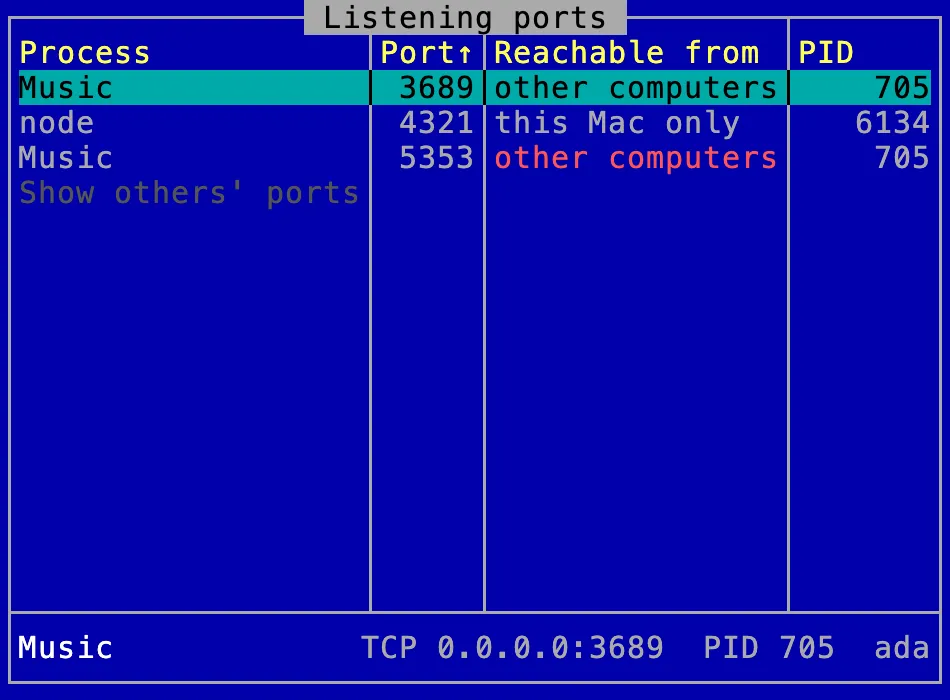
Ports
Who is listening
Every port something on your Mac listens on, the process holding it, and whether other computers can reach it.
Every disk, one list
The Trash, with where things came from
Everything in the Trash from every disk, each row saying which folder it came from. F5 sends it back there under the name it had, and Empty Trash says what it comes to before it asks.
Disks, cards and shares
A pane can list the volumes themselves, with their capacity and free space. Open one, and F8 it from the pane when you're done — or ⌥⌘E from anywhere. A disk in use names the programs holding it, and can quit them and try again. Mount an image, make one, or ⇧F8 an external disk, right there.
zip · 7z · rar · tar · cab · iso · dmg
A zip is a folder too
Enter goes into an archive or a disk image as into any folder. Look at a file where it is, F5 out what you need, or ⌥F6 the whole thing without going in. In a zip, 7z or tar, F8, F2 and copying in work too, and the old copy goes to the Trash.
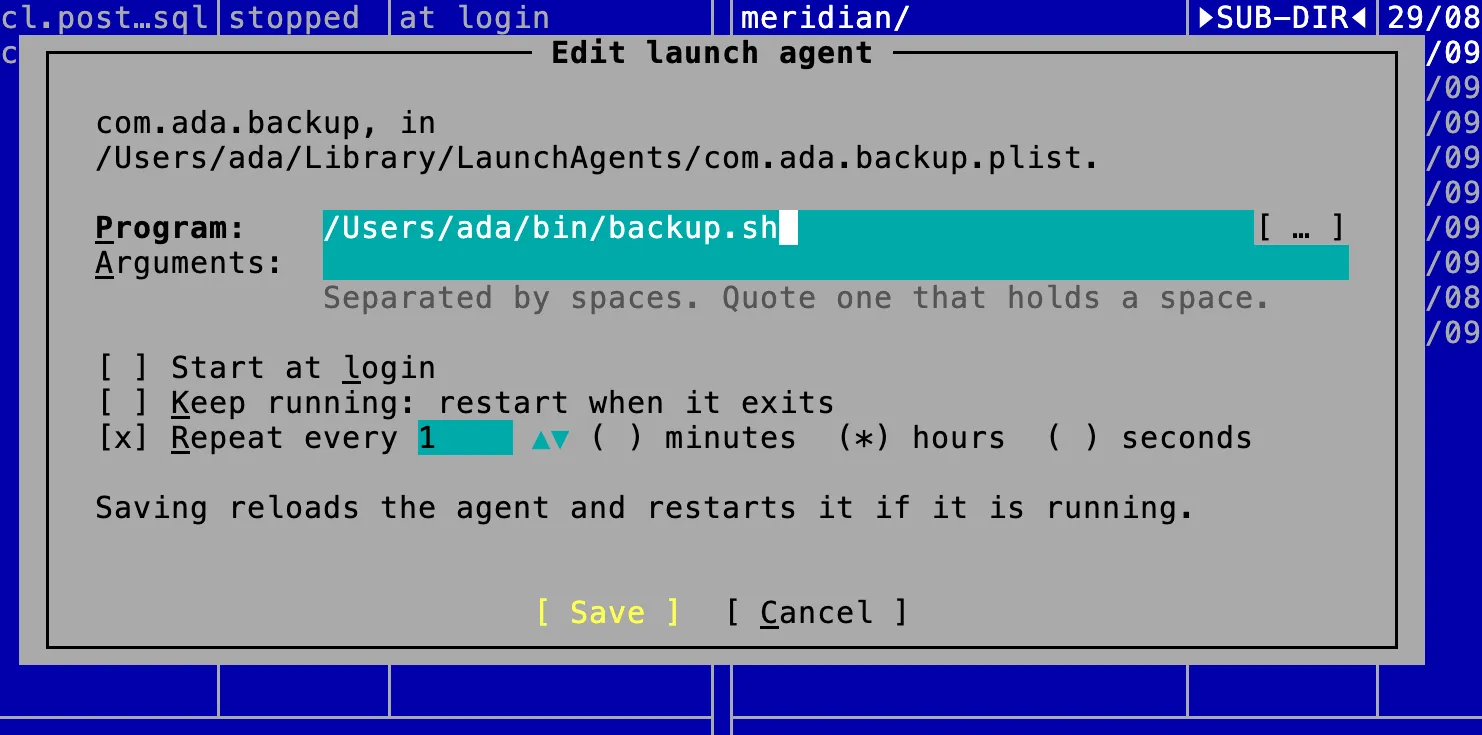
Launch agents
Change what starts by itself
Your own launch agents and Homebrew services as a pane: running or not, what starts each, how it last ended. F4 opens a form — the program, its arguments, at login, keep it running, every so many hours — and saving reloads it. F7 makes a new one. No XML to write, and no administrator.
Everything the panes do
Moving around
- Enter goes in, ⌘↑ comes out
- ⌘[ and ⌘], like a browser
- ⌥⌘[: everywhere the pane has been, kept for next time
- ⌘T: several folders in a pane as tabs, each with its own place and history
- ⇧⌘[ and ⇧⌘], or ⇧⌘T and a number; the tabs come back after a restart
- A tab can have a name of its own, kept wherever it goes
- Tab and ⌘U
Getting there
- ⌥F1 and ⌥F2: disks, your folders, the other pane's folder, each on one key, and the pane you chose for is the active one
- Pin the places you use most to the top of the list, or give any of them a key of its own, from its row
- ⇧⌘H, ⇧⌘D, ⇧⌘O, ⌥⌘L
- ⌘G, with the folders that fit offered as you type
- ⌥⌘→: what is in the folder under the cursor, without leaving this pane
- ⌘D; the first nine on ⌘1 to ⌘9; ⌘\ for the rest
ncmd ~/workfrom any terminal shows a folder in the active pane
Finding a name
- Type to find, by the start of a name, anywhere in it, or by pattern
- ⌘P: any file or folder under this one, by part of its name, its initials, or with a small typo
- ⌥⌘F, which stays on from folder to folder
Showing it
- ⌘F1: full, brief in one to six columns, or thumbnails small or large, with the columns you choose
- ⌃U: largest first, every folder measured, with each row's share and the total
- Three sizes, each a column you can show and sort by: the length, the room on disk, and what deleting it alone would free
- Totals that count a file with several names once, and leave out links and disks mounted inside a folder
- Size bars in the full view, so the large things stand out without reading a number
- ⌘F2, or click a heading: name, extension, date, any of the three sizes, or unsorted; and again to reverse it
- F10: everything about what a pane shows, in one place
- A folder can keep its own sort, view and columns, for itself and the folders under it
- Finder tags as names or colored dots, and the emoji or symbol a folder was given in Finder
- Folders above files, and the way up always on top
- Names in Finder's order, file2 before file10, or compared exactly, as a setting
- F3: a folder's size on its row, without marking it
- Sizes to the byte where they fit and rounded where they don't, or always one or the other, with the unit colored by how big it is
- A long name cut in the middle, so its start and its extension both show
- Dates as your Mac's region writes them, or in one of seven forms you choose
- ⇧⌘., ⇧⌘Enter, and the split between the panes as a setting
Marking
- Space, +, -, *, ⌘A
- Mark by tag, and filter a pane to one tag
- Sweep with the right mouse button
- The count and size of what is marked, under the list
What a pane can hold
- A folder, the volumes, search results or the clipboard
- The Trash, from every disk: F5, F8, Empty Trash
- The running processes: inside one, F8, ⇧F8, F2 to keep the order still
- Your applications, with version, size and when each was last used; F8 takes one away with what it left in your Library, to the Trash
- Your launch agents and Homebrew services, started, stopped, edited or made, with no administrator
- The ports something listens on, the process holding each, and whether other computers can reach it
- Collections: files from anywhere on the disk on a named list, added with ⌘B and acted on together
- Two folders tied together with ⌃S, or compared as you go with ⌃⇧S
- The terminal, beside the other pane
- An archive — zip, 7z, rar, tar, cab, iso or lha, or split across several files — copied out of, and a zip, 7z or tar changed in place
- A .dmg disk image, opened out of sight and read like an archive, or mounted as a volume
- The volumes: mount one, ⇧F8 an external disk, or ⌥⌘E from anywhere; a disk in use names the programs holding it
What the other pane can become
- ⌃T: a folder tree the pane follows; ⌥→ starts it at any folder
- Copy, move, rename, delete and new folder from the tree, on one folder or several marked at any depth
- ⌃Q: the file under the cursor, shown as the viewer shows it
- ⌃L: what Get Info says, and the disk it is on, with what you can change beside each line
- Clean up disk space: the tree and the pane both saying what takes the space
- Each comes back after a restart
Once you've had two panes, one looks lonely.
Version 1.2.0 · universal · macOS 13 or later · about 70 MB
The panes manual · Every key · Hands on the keys · Collections · Launch agents
More features
- File operationsCopy, move, rename and delete on a queue that never blocks you and never leaves a half-written file.
- ClipboardThe clipboard as it really is — every form of what was copied, in a pane, to look at, edit and save.
- Compare and synchronizeTwo folders, or two files, side by side — what differs shown at a glance, and brought in line only after you've seen what will happen.