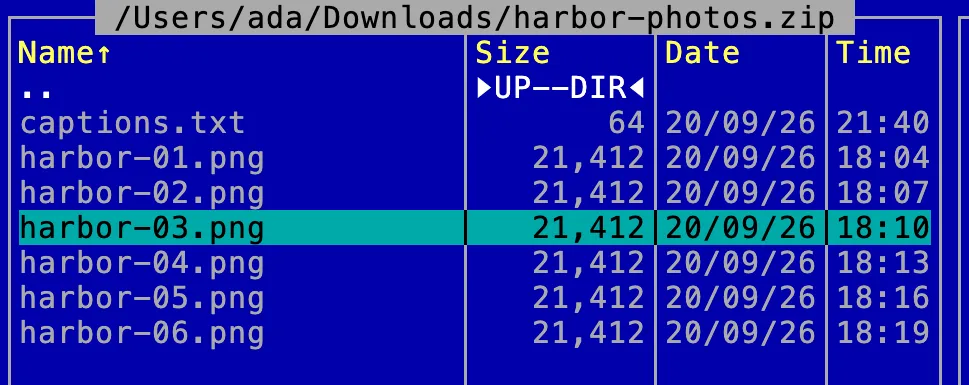
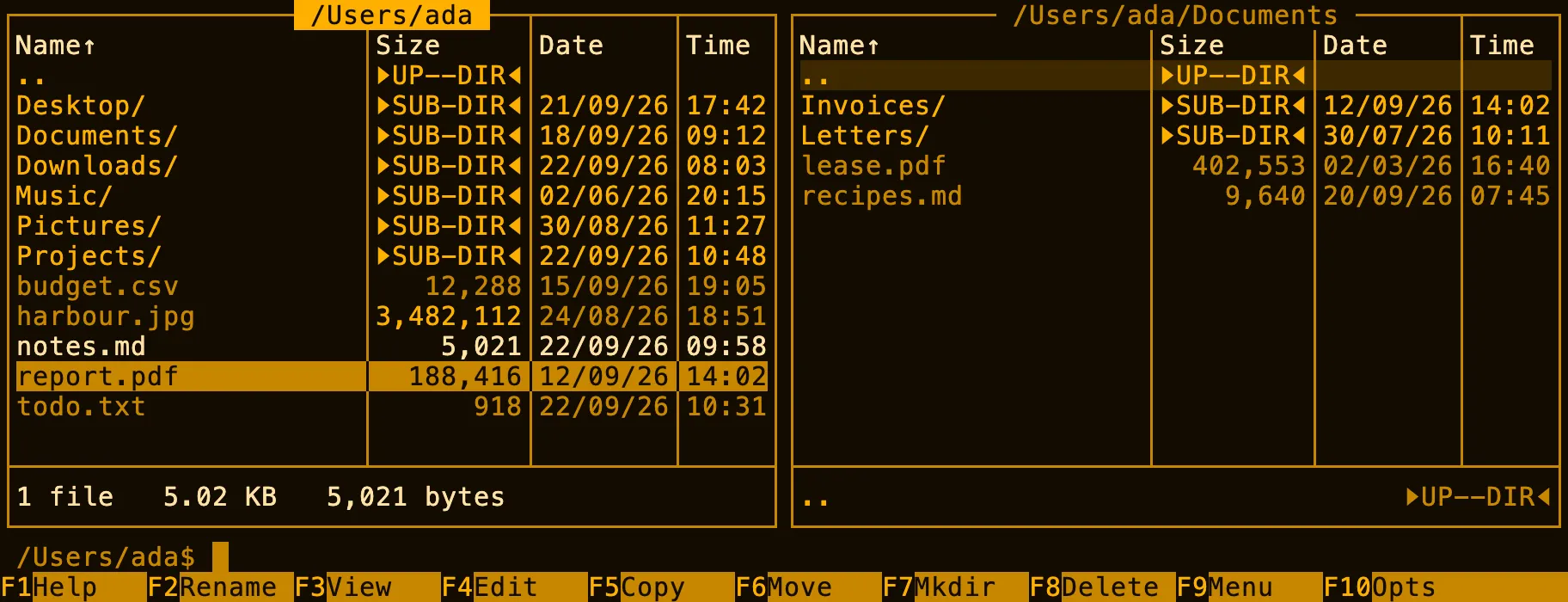
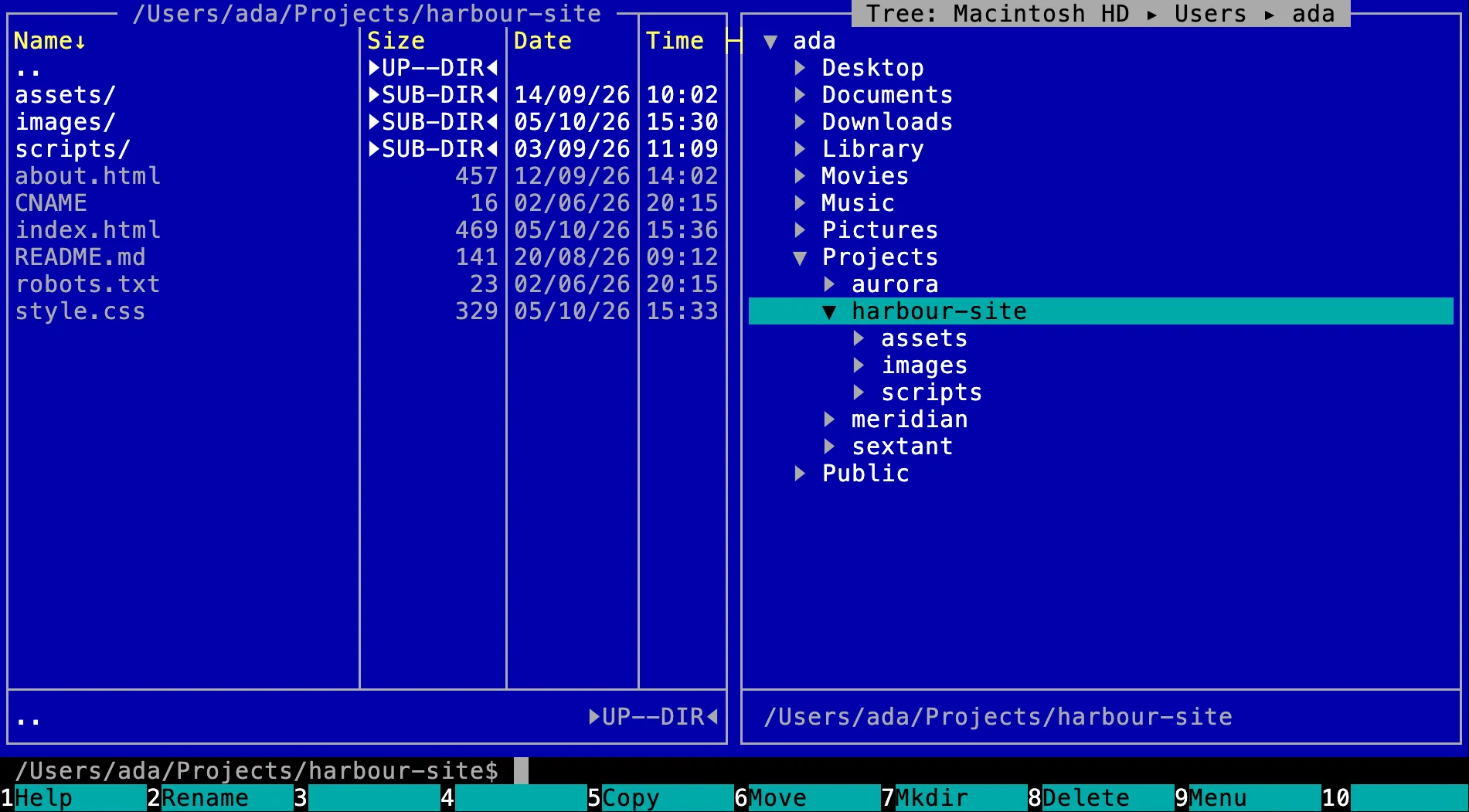
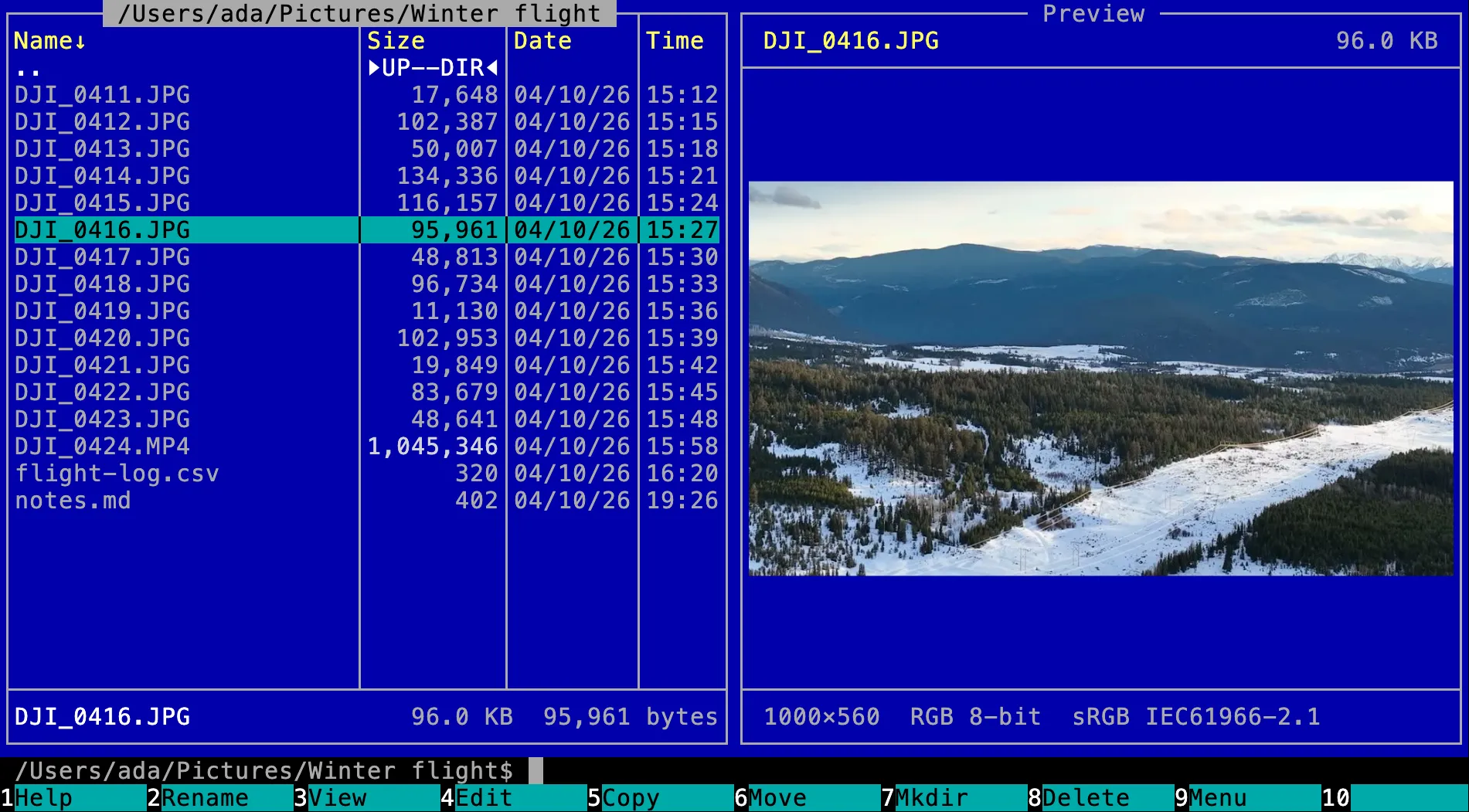
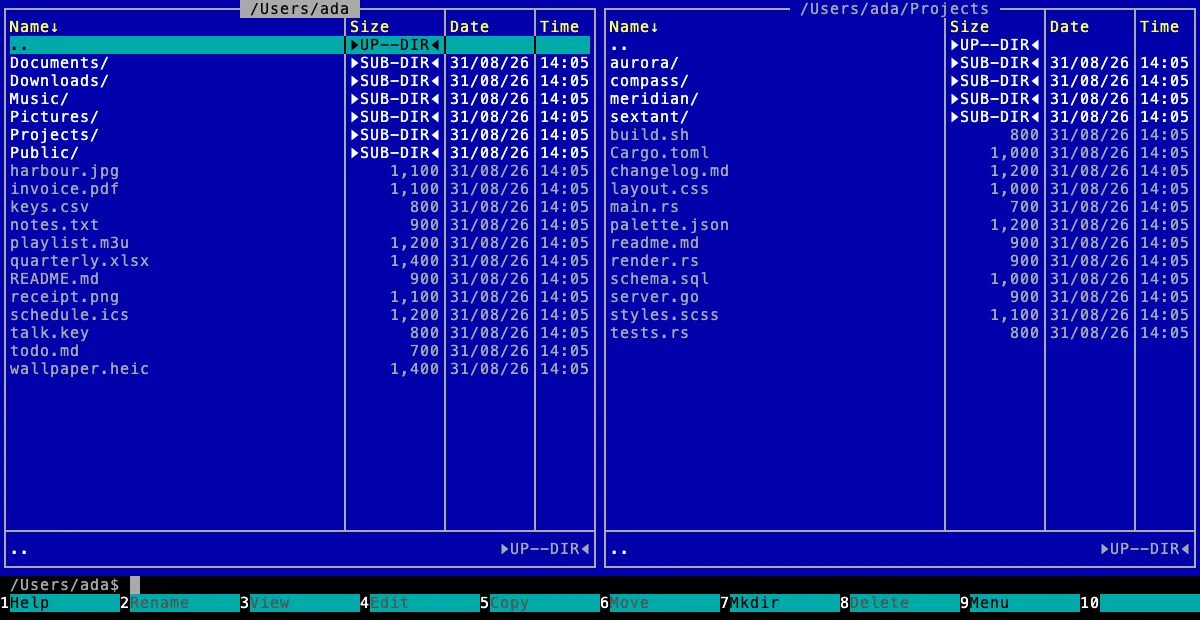
Uninstall applications, run your launch agents and see what listens on a port, all in a pane; mount, make, format and eject disks from the keyboard; and gather files from anywhere into collections.
Choosing a place from ⌥F1 or ⌥F2 now makes that pane the active one. To stay in the pane you were in, turn off Choosing a place makes its pane active in Settings › Panes.Panes · More
F10 shows the options of the pane you are in, no longer both side by side, and Right like left is gone: press it in the other pane to change that one. The columns are laid out in two, with size bars under the sizes, and a star after an option marks what is not remembered.Panes
Highlights
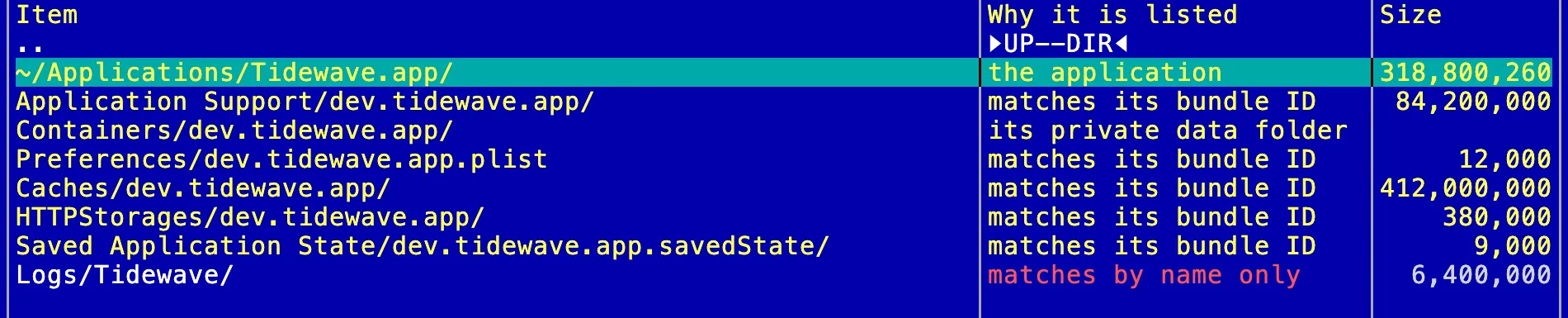
Applications, launch agents and ports, in a pane. The places list (⌥F1) now offers Applications, Launch agents and Listening ports. Applications lists what is installed, with its version, size and when it was last used; F8 on one uninstalls it with what it left in your Library, everything to the Trash where it can be put back. Launch agents starts, stops, edits and creates your own, and your Homebrew services, with no administrator. Listening ports shows each port, the process holding it, and whether other computers can reach it.Panes · More
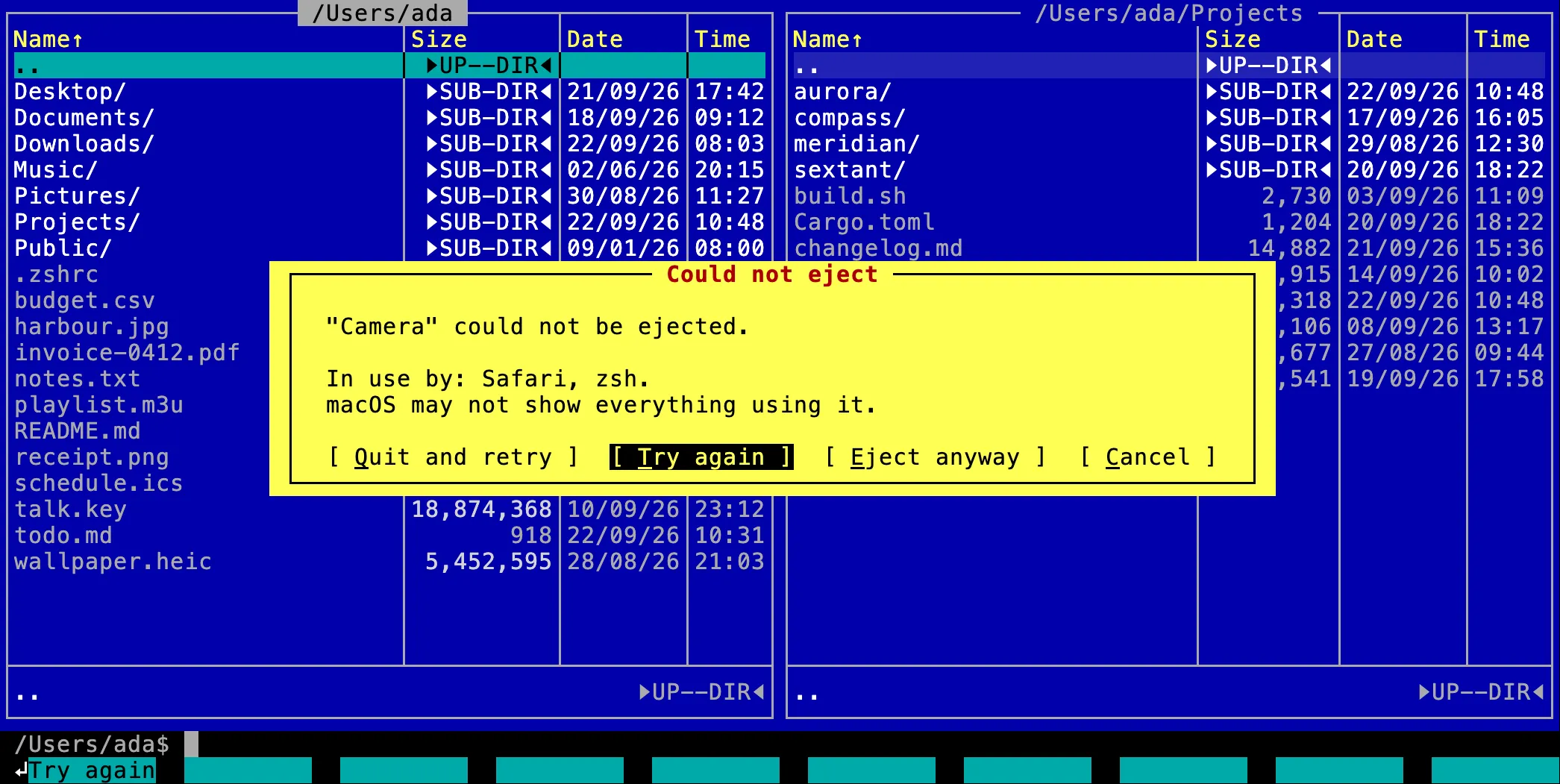
Disks from the keyboard. Mount a disk image, or a volume that is not mounted, from the volumes list; make a new disk image that grows as you fill it; and format an external disk as APFS, Mac OS Extended, exFAT or FAT32 after typing its name. When a disk will not eject, the app names the programs using it and can quit them and try again. ⌥⌘E ejects one or several disks from anywhere, and Show programs using this, in the Files menu, works on any file or folder.Panes · More
Collections. ⌘B adds the file under the cursor, or everything marked, to a collection: a named list of files from anywhere on the disk, kept until you delete it, and ⇧⌘B chooses which. Open a collection in a pane to look through it, copy it all somewhere, or delete it all. ⌥F8 takes a row off the list and leaves the file alone. A file you move or rename in the app stays in its collections.Panes · More
New
A folder can keep its own sort, view and columns, for itself and the folders under it, and the pane goes back to its usual view when it leaves. F10 says what the folder keeps, and Folder views… in the Left and Right menus lists every folder that keeps one.Panes
Finder tags show in a pane, as names or as colored dots, when you choose the Tags or Tag color column in F10. Tags…, in the Files menu, adds tags to what is marked or takes them off, in Finder's colors, and can tag everything inside a folder. Filter by tag…, in the Left and Right menus, shows only the files with one tag, and Mark by tag… marks them.Panes · More
A folder you gave an emoji or a symbol in Finder shows it after its name. Untick Folder emoji in F10 to hide them.Panes
Type ncmd in any terminal to open Northern Commander at a folder or a file, or ncmd view and ncmd edit to read or change one; --wait waits until you close it. The app offers to install it once, and Install command-line tool… in the Options menu does it any time.Terminal · More
Split file into pieces…, in the Commands menu, cuts a big file into pieces of the size you choose, and Combine pieces into one file… puts them back together. Both say before they start when the disk is too full.File operations · More
Find duplicate files…, in the Go menu, finds the files you hold twice, in any number of folders or between two, and lists them in groups like a search. It changes and deletes nothing, and does not download files kept in the cloud.Search · More
Share…, at the top of the Files menu, sends the marked files, or the one under the cursor, through AirDrop, Mail, Messages and whatever else your Mac offers.File operations
A file opens in the viewer and the editor where you left it, down to a table's column widths and a PDF's page. To always start at the top, turn off Reopen files where they were left in Settings › Viewer and editor.Viewers · More
Press ⌘Enter on a row in the places list or a menu, or right-click it, to pin it to the top or give it a keyboard shortcut. A favorite or a user-menu command can also get a key in its own form, and keeps it when the list is reordered.Settings
A tab can have a name of its own: choose Name tab… in the Tabs submenu of the Left or Right menu. It stays when the tab goes to another folder, and after a restart.Panes
With jq installed, the Search box of a JSON file can run a jq filter, and what it gives opens as a new document. When jq refuses a filter, its error shows under the field.Viewers
Northern Commander can show a screensaver, a starfield or slow northern lights, after some minutes without a key or the mouse. It is off until you set Screensaver, minutes in Settings › Display, and Start the screensaver in the Options menu shows it at once.General · More
If you send usage data, it can now also name more kinds of operation (splitting a file into pieces and combining them, changing tags, finding duplicate files, formatting a volume), and say that a favorite, a place or a user-menu command was used, never which. It never names your files or what is in them.Reports and privacy · More
Improved
In the list of actions, Go to a file, the command history and any menu, initials, skipped letters or a small typo now find what you meant. What you typed before finds the same things first, and a menu's rows keep their order.General
In the Files menu, Select is now Mark, as the rows say: Mark all, Mark by pattern…, Unmark by pattern… and Invert the marks. Their keys, and any you set for them, work as before.Panes
A folder that is slow to open now says so under the pane's list instead of looking frozen. Everything else keeps working, and Esc gives up on it.Panes
Rest the pointer on a name or a path cut short with …, almost anywhere in the app, to see all of it.General
A zip, 7z, rar or other archive whose name does not end in its kind opens with Enter like any archive, to look through and copy from. To change it, give it its usual extension.Panes · More
Enter on a UDF disc image offers to mount it instead of calling it damaged, and an image with both file systems has a More files when mounted row that mounts it.Panes
Changing a large archive shows its progress and can be stopped cleanly. A second change waits its turn instead of failing, and the app asks first when the disk is too full.Panes
Saving a file you edited inside an archive shows in the journal and can be undone like any other change to that archive.Editor
Fixed
Moving a folder into an archive no longer deletes a file that appeared in the folder after the move started: it stays where it is, still marked, and the journal says why. Whatever a move could not remove stays marked too.File operations
In a tar whose names start with ./, deleting, renaming and replacing a file now work. They used to report success and change nothing.Panes
Changing an archive reached through a symbolic link changes the archive it points to, and the link stays a link.Panes
Changing one thing inside a tar or a zip no longer changes the files you left alone: their owners, hard links and permissions stay, and so do the archive's Finder tags.Panes
If the app is force-quit while changing an archive, the half-written copy it leaves beside it is cleared away instead of taking up space.Panes
A zip made with a password that has an accented letter now opens in 7-Zip, Keka and other tools.File operations
Canceling the question that comes up when the Trash refuses a delete no longer reports a failure in red. What was left stays where it was.File operations
If your settings came from 1.0 and you indent with spaces, new files indent by your tab width again, as they did in 1.0, rather than by 4.Editor · More
A short file opened at a particular line always lands on that line. Now and then it used to stay on the first.Viewers
1.1.0Change what is inside an archive, and tables that work like a spreadsheet
Change what is inside zip, 7z and tar archives with the usual keys, add up, filter and paste in tables, and split or join CSV files from the panes.
Panes now order names as Finder does: file2 before file10, and é next to e. To go back to comparing one character at a time, set Order names to exactly in Settings › Panes.Panes · More
In a table in the viewer, F5 no longer copies a cell: ⌘C does. F8 there now freezes columns, while in the table editor it still deletes, now every selected row. The reading options moved from ⇧F4 to ⌥F4 in the viewer; in the editor they stay.Viewers
Enter on an .iso now goes inside it here instead of handing it to macOS. To mount one, use Open with… in the Files menu.Panes · More
With a notice up and the cursor on a file, Enter now only closes the notice. It used to open the file as well. On a folder it still goes in.Panes
In the Files menu, the letter for Look inside is now K. L is Split rows into files…Panes
The editor now indents the way a file already does. For a new file, how many spaces an indent is has become its own setting, Spaces in an indent, starting at 4 rather than following the tab width. Set it in Settings › Viewer and editor if you used another width.Editor · More
Highlights
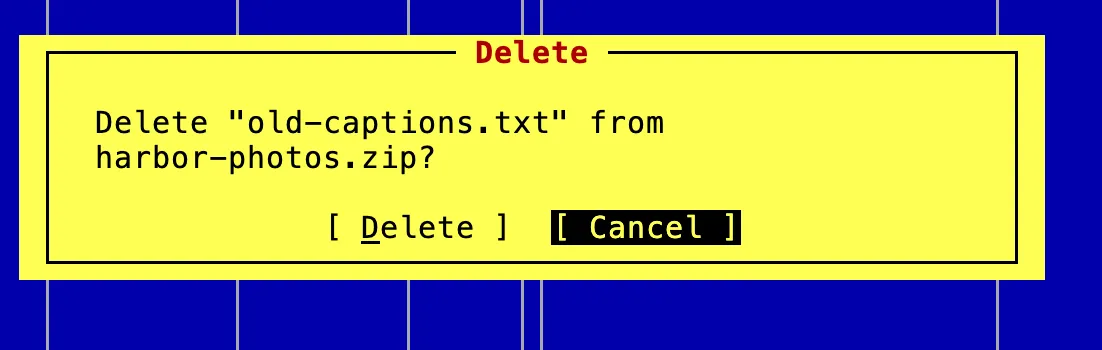
Change what is inside an archive. Inside a zip, a 7z or a tar, compressed or not, the keys a folder has now work: F5 and F6 in and out, F2, F7, F8, and saving from F4. The old copy of the archive goes to the Trash.Panes · More
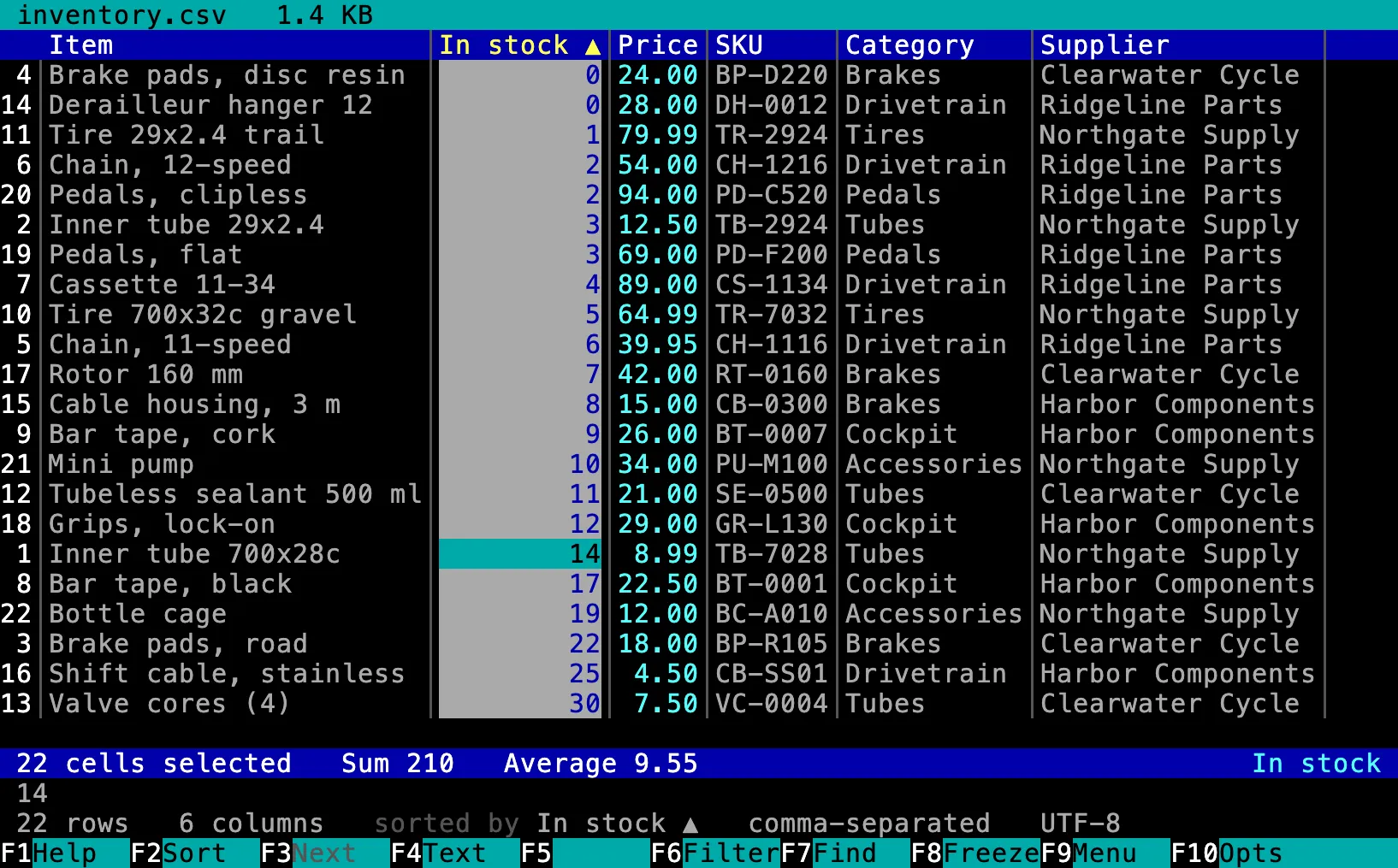
Tables that work like a spreadsheet. In a CSV or TSV, select cells to see their sum and average and copy them to a spreadsheet, F6 to show only the rows that match, and F8 to keep columns in view. In the editor, cells change in place, and ⌘V pastes a block from a spreadsheet. The Table menu has the rest.Viewers · More
Split, join and clean up CSV files. Mark CSV or TSV files in a pane to join their rows into one new file, or split each by a column's values, a number of rows or a size, from the Files menu. The table editor can also remove duplicate rows.File operations · More
New
A .cab, an .iso, an .lha or .lzh, and an archive split across several files such as photos.part1.rar or photos.7z.001, are gone into and extracted as a zip is. ⌥F5 can now make a 7z, a tar.bz2, a tar.xz or a tar.zst, and a zip with a password.Panes · More
⌘P finds a file or folder anywhere under the current folder as you type part of its name, and Enter takes the pane to it.Panes
F3 on a folder measures it and shows its size on the row, without marking it. ⌥⌘→ shows what is inside the folder under the cursor in the other pane, without leaving the pane you are in.Panes
A copy or move that cannot fit on the destination disk now says so before it starts, and can still be started.File operations · More
JSON Lines files open as a table that can be sorted and filtered, and a JSON or YAML list of records can be switched to a table with Show as a table, in the View menu.Viewers · More
In a JSON, YAML or property list file, the Search box can read what you type as a JSONPath query, and F3 steps through its matches with a count along the bottom.Viewers
The text viewer can follow a growing log: press End at the end, or choose Follow the end in the View menu, and new lines keep appearing, filtered or not.Viewers
With a filter on in the text viewer, ⌘C copies the lines it kept, and ⌘S saves them.Viewers
⇧F4 in a viewer opens the file in the editor where you were reading, and closing the editor brings you back to the same place.Viewers
When another program changes a file open in the editor, it picks up the change by itself if you have nothing unsaved. With unsaved changes, it asks before anything is lost.Editor
⌘D duplicates the line or the marked text, ⌃⌘↑ and ⌃⌘↓ move lines, and Find starts with the text you marked.Editor
In a JSON or YAML tree, copy a value or a whole branch and paste it elsewhere with ⌘V. It comes out in the file's own style.Editor
Searching for text now finds a value inside a binary property list, such as an app's preferences file. A box on the Advanced page also looks for the text in file names inside archives.Search · More
⌘C in the picture viewer copies the picture's file, and the top of the window shows how far you have zoomed in.Viewers
If you send usage data, it can now also name two more kinds of operation: joining rows and splitting rows. It never names your files or what is in them.Reports and privacy · More
Improved
File names in Japanese, Chinese or Korean no longer overlap, and accented names, as macOS often stores them, show their accents in place.General
A closed item in a list of records shows the values that tell it apart, such as its id and name, so you can find one without opening each.Viewers
Sorting a table column puts "Customer 2" before "Customer 10".Viewers
After stepping through files in a viewer, closing it leaves the cursor on the last file you looked at.Viewers
In the list of actions (⌘K), a word you would naturally use, like "trash" or "new folder", finds the action it belongs to.General
Fixed
While a share or a cloud folder stops answering, panes elsewhere still open folders at once, and quitting ends the app within a few seconds.Panes
Closing a terminal while a program in it was still running could occasionally quit the app. It no longer does.Terminal
Files deep inside a tar made by macOS's own tar show and extract at their whole path, not under a cut-short folder.Panes
Pressing Space, Enter or Play/Pause on a film or recording that has finished plays it again from the start.Viewers
In a notebook, a search that was running while the window was resized no longer disappears without a result.Viewers
A problem report no longer needs sending twice when the service that files it has a brief hiccup.Reports and privacy
1.0.0Archives, folder tabs and color themes
includes 1.0.0-beta.2, 1.0.0-beta.1Go inside archives and disk images like folders, extract archives and make new ones, keep several folders open as tabs in each pane, pick one of four color themes, and change settings with OK, Apply and Cancel.
Settings, View options, Key bindings, File types and the editor's settings now have OK (⌥O), Apply (⌥Y) and Cancel, and nothing changed on them takes effect until OK or Apply. Open settings.json is now ⌥S, and in Key bindings Only customized is ⌥U and the Option box ⌥T. Save now is gone from Settings: Save settings, in the Options menu, writes the file.Settings
The menu bar over the panes is now Left, Files, Go, Terminal, Commands, Options and Right, and Go to in the Left and Right menus is now Show here. Favorites, Find files and Spotlight are in Go, Permissions… and Change dates… under Files › Info, Compare and Synchronize under Commands › Compare. The General page of Settings is gone: the font is on the new Display page, and the log settings on Diagnostics.General
Every copy is set to get finished releases on its first start of this version. To keep getting betas, set Versions to be offered to Beta again in Settings › Updates.Updates · More
In Copy and Move, the destination they fill in now starts selected, so typing a path replaces it. Press an arrow key, Home or End first to add to it instead.File operations · More
Over the panes, ⌘T, ⌘W, ⇧⌘[, ⇧⌘] and ⇧⌘T now act on the pane's folder tabs. The terminal's tabs keep those keys in the terminal itself.General
In a regular-expression replace, $ followed by a number, 0 or a name in braces now stands for what the pattern captured, and $$ writes one $. Where you meant a $ itself, write $$.Editor
A path in a dialog is now a place the keyboard stops, in Get Info, Save as, About, Find files, Spotlight, a process's Get Info and the journal: Tab to it, then ⌘C copies it and → shows it whole. In Get Info, ⌥E and ⌥P no longer do.General
F8 on a folder with things in it now starts on Delete when it goes to the Trash, like any other delete to the Trash, so F8Enter deletes it. A permanent delete still starts on Cancel.File operations
⌥F5 and ⌥F6 now have commands of their own. If you had put one of them on another command, the key asks which you meant each time it could be either. Give one of the two another key in Key bindings.General
Highlights
Archives and disk images open like folders. Enter on a zip, tar, 7z, rar or zstd archive, a lone .gz, .bz2 or .xz file, or a .dmg goes inside it like a folder: F3 views a file in it and F5 copies files or whole folders out. ⌥F6 extracts whole archives into the other pane, and ⌥F5 makes a zip, tar or tar.gz from the marked files. An encrypted archive or image asks for its password, and a disk image never shows up in Finder.Panes · More
Folder tabs in each pane. Each pane can hold several folders as tabs. ⌘T opens one on the folder you are in, ⌘W closes it, ⇧⌘[ and ⇧⌘] step through them, and ⇧⌘T lists them. Each tab has its own Back and Forward, the two panes' tab rows line up, and the tabs are all there on the next start.Panes · More
Four color themes. The new Display page of Settings has four color themes: faithful, amber, green phosphor and modern. Moving through them shows each across the whole window before you choose.Settings · More
New
A kind of file set to Run in File types now runs: Enter asks first, then runs it in a new terminal tab. The question can stop asking for that file until it changes, or for every file set to Run, which the File types page of Settings can turn back off. Only a file you may run runs, and never from inside an archive or the Trash.Panes · More
Clicking a column heading in a pane sorts by it, and clicking it again reverses the order.Panes
⌥F7 makes a symbolic link to the marked files or folders in the other pane's folder, as an absolute or a relative path. The journal can take it back.File operations · More
The menu bar has two new menus, Go and Terminal, and Show here › Terminal in the Left or Right menu puts the terminal in that pane's place. Long menus gather related commands into submenus that open beside them, and every row has a red letter.General
⌘F finds in every viewer and in the editor, as well as finding files from the panes.Viewers
A regular-expression replace in the editor can put back what the pattern captured: $2, $1 swaps two groups.Editor · More
A Markdown file that begins with front matter shows its fields one to a line, in a block of their own, in both the laid-out and the typeset reading.Viewers
Improved
In the Clipboard pane, ⌘↓ on a copied file lists the flavors it was copied as. Enter still opens the file.Panes
In the editor, ⌥⌫ deletes a word and ⌘⌫ back to the start of the line, ⌘C and ⌘X with nothing selected copy or cut the whole line, and a right-click offers Cut, Copy and Paste.Editor
JSON and YAML files open with as many levels showing as the window holds: a small file opens whole, a big one shows its shape.Viewers
The Find files button that lists the results in a pane is now called Show in pane.Search
⌘↓ on a plain file says there is nothing to go into.Panes
Double-clicking a file in a pane opens it the way Enter does, instead of only moving the cursor to it.Panes
The mouse wheel moves a pane three rows a notch, as in the viewers, and a trackpad scrolls a pane as far as it moves.Panes
A pane left inside an archive opens beside it on the next start.Panes
A long menu shows a scroll bar on the right of its frame. Clicking it or its arrows scrolls the menu, and so does the mouse wheel.General
The last row names every key that does something in a dialog, such as the arrows that change a value or reach a list from its search field.General
What cannot be done yet, such as going inside a .cab or a rar split into parts, is said plainly, with Open with… offered instead.General
Enter on a folder you cannot read now says why.Panes
Fixed
A character whose font cannot be loaded no longer closes the app. It is drawn from another font that has it, or as a box.General
Files in older rar archives show their dates, and keep them when copied out.Panes
In the Markdown viewer, a $ is shown as written, so a table with $ in neighboring cells keeps all its columns.Viewers
Enter on a Finder alias to an application asks whether to look inside or launch it, as on the application itself, and an alias to a folder opens the folder.Panes
The Trash lists what it can read, and names the disk it could not read, instead of showing nothing.Panes
The preview pane draws a file on one even background, and a typeset task list shows plain boxes, the ticked ones filled.Viewers
In the tree editor, Find next keeps working after you change a value, and searching again starts with the last text selected.Editor
Taking the line filter off leaves you on the line you were on.Viewers
The Size hint in Find files and the index search says K is a thousand bytes, as the search counts it.Search
Copying or moving a folder that holds a pipe, a socket or a device no longer hangs: those stay where they are, the rest goes, and a notice says what was left and why. Viewing, searching inside files, checksums and comparing contents no longer hang on one either.File operations
The progress of a copy no longer steps back when a file cannot be read.File operations
A move that cannot make its destination folder, or fails on an item, now says move rather than copy.File operations
Panelize from Find files lists what was found even when some folders under the search could not be read.Search
Changing a CSV cell that spans several lines no longer changes how its line breaks are written, so the rest of the file saves exactly as it was.Editor
The editor's help says what Replace and All do, instead of promising a question that is never asked.Editor
Hide Others, in the application menu, is on ⌥⌘H. It was on ⌥⌘Q.General
0.14.1Sizes on disk, and what deleting would free
Panes can show how much room a file or folder takes on disk and how much deleting it would free, folder sizes count links, mounted disks and hard links correctly, and the row of keys at the bottom holds still while a dialog is open.
Two more sizes: On disk and Private. Panes can show two more sizes beside a file's length: On disk, the room it takes, and Private, what deleting it alone would free. Tick them in View options (F10), sort by them, or put the usage view in order by one of them to find what is really filling a disk. Get Info and the info pane show all three.Panes · More
Improved
The row of keys at the bottom keeps the same ten cells as the function-key bar, so opening a dialog or moving around in it changes only the words, never their places. Keys that go without saying, such as Esc, Tab, the arrows and underlined letters, are no longer listed, and in a narrow window a word is shortened rather than its key disappearing.General
The full-screen terminal shows the key back to the panes, ⌥⌘O, beside its tabs.Terminal
Compare files opens with Ignore white space as you last left it in that window, from the dialog or with F6 in the comparison, until the window closes.Viewers
Fixed
A link is shown in gray with what it leads to, and counts in no total. A disk mounted inside a folder, such as a network share or a disk image, is marked and not measured, and a file with several names is counted once. Some folder sizes come out smaller than before because of it.Panes · More
Adding a row after the last row of a CSV or TSV file no longer runs it into the row above. Deleting the last row, or the last entry of a YAML file, no longer leaves an empty line.Editor
Menus no longer cut a folder's name at its front, and a key on one row of a menu no longer shortens the names on the others.General
Live compare says so each time you switch to an order its rows cannot line up in, not only the first time.Panes
0.14.0Compare and synchronize folders, compare files side by side, and the Trash in a pane
Compare two folders as you walk them or synchronize them from a plan, compare two files side by side and take changes from one into the other, and open the Trash in a pane to put things back.
Enter on an application now asks whether to look inside it or launch it. ⌘O launches it straight away, and ⌘↓ looks inside any folder or application. To make Enter launch again, set the Application bundles row in File types… to open with the system default.Panes
In a comparison of two files, and in a patch, the next and the previous change are now on ⌘↓ and ⌘↑. They were on F2 and ⇧F2, and F2 now saves a comparison. They stop at every change, where before they stopped once for a group of nearby changes.Viewers
In Go to folder, Tab now moves to the next control instead of completing the path. → takes the suggestion.General
F10, ⌘O, ⌘↓, ⌃S and ⌃⇧S now have commands of their own, and so does ⌘F10 in the terminal. If you had put one of them on another command, the key asks which you meant each time it could be either. Give one of the two another key in Key bindings.General
The arrow in a pane's heading now points the other way: Name↑ is A to Z.Panes
Highlights
Compare two folders as you walk them. ⌃⇧S ties the two panes and compares them as you go: a file only one side has is green, one that differs is magenta, and the rows line up with a blank line where the other side has nothing. On a blank line, F5 copies the other pane's file into the gap and F8 deletes that file. ⌃S ties the panes without comparing: go into a folder in one and the other follows by name, and a folder missing on one side can be made there. Compare folders…, in the Commands menu, marks what differs between the panes instead, and can look inside folders.Panes · More
Compare and synchronize two folders. Synchronize folders…, in the Commands menu, compares two folders all the way down and lists what only one side has and what differs. Plan what to copy or delete row by row, or fill the plan in one direction or both with F4. Nothing is changed until F2 applies it. Deleted files go to the Trash, and replaced files do too unless you untick it.File operations · More
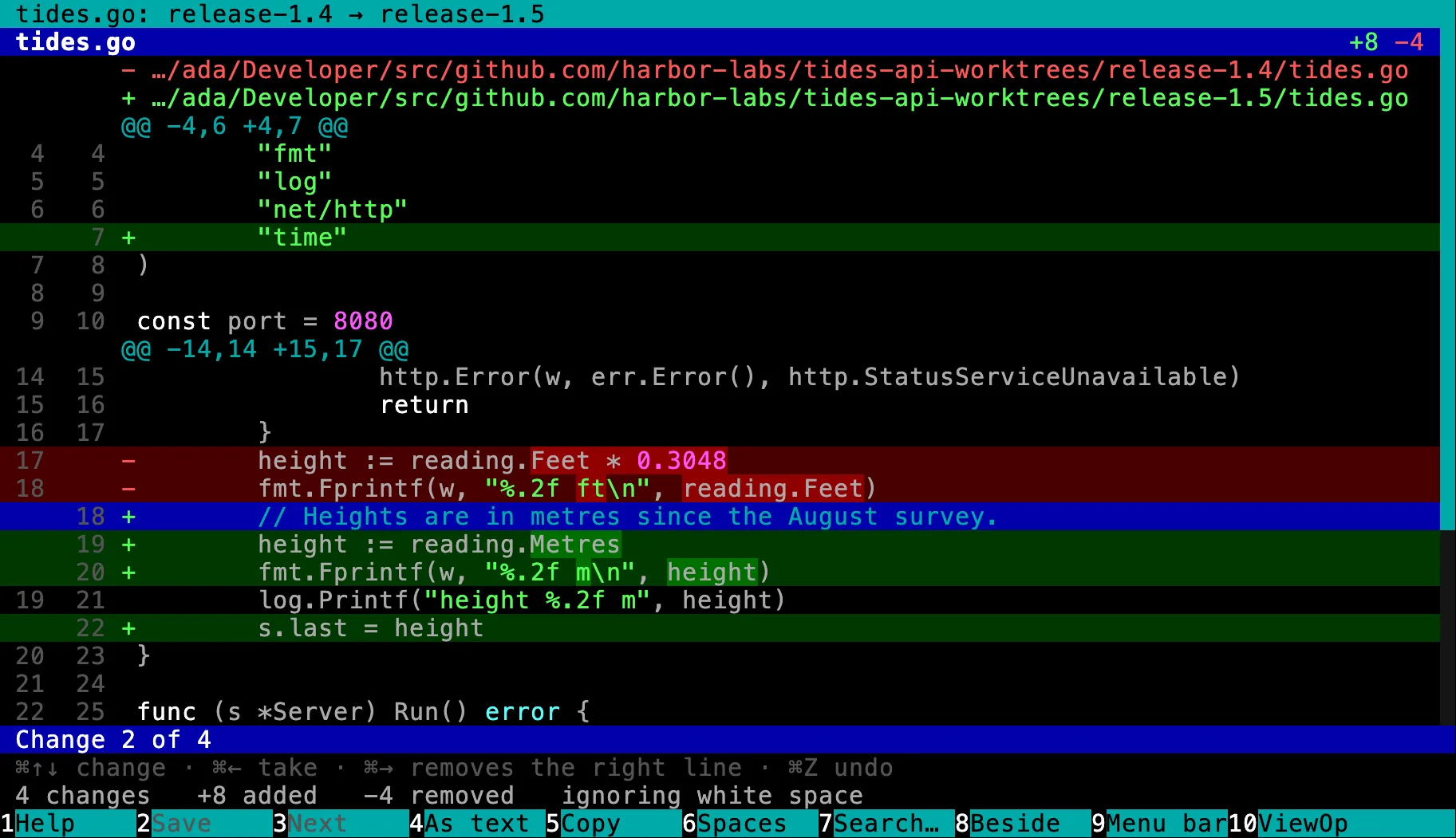
Compare two files side by side, and take changes across. A comparison of two files (⌥F3) can be shown side by side with F8: the old file on the left and the new on the right. ⌘→ and ⌘← take a change from one file into the other, and the file it went into is shown as the save will write it. The opposite arrow puts a change back, ⌘Z undoes, and F2 or ⌘S saves.Viewers · More
The Trash in a pane. The Trash opens in a pane, from the places list or the pane's menu. Each item shows the folder it came from: F5 puts it back there, and F8 deletes it for good. Empty Trash…, in the Commands menu, empties the Trash on every disk.Panes · More
New
A pane can list the running processes, from Processes in the pane's menu: how busy each one is and its CPU time, and inside a process, what it has open and the processes around it. F8 quits one and ⇧F8 force quits it. F2 holds the order so rows stop moving while you read them, and ⌘O switches to an application.Panes · More
F10 lists everything that can be changed about what is on screen, with how each stands now, and changes it there: the left and the right pane side by side, or the options of the viewer, the editor, a view of a file, synchronize, and the terminal on ⌘F10. Nothing is set until Use, and a star marks the few options that are not remembered. It takes the place of the View dialog.General
The copy and move dialog has a Preview button that shows what would happen before anything is written: how many files, how much, and whether each file already there is larger, smaller, older or newer than the one arriving. One answer can be given for all of them: overwrite, skip, or overwrite only what is older.File operations · More
Wherever the app asks for a file or a folder, the field offers what the path could become as you type, and → takes it. The [ … ] button beside it, also on ⌘O, opens a picker to walk there through side-by-side lists of folders instead.General
Improved
The last row of the window shows the keys that work where you are. In a dialog, a menu or a list it is a bar of that thing's own keys, with ⎋ and ⏎ first, and each can be clicked.General
A long path is cut in the middle, so its start and its end both show. The info pane and Get Info can show a path whole and copy it.Panes
A path typed in other capitals takes the folder's own spelling. A plain folder name works as a copy destination, and means that folder beside what you are copying.File operations
In menus, the letter that picks a row is marked in its name, a row's key is at its right edge, and rows keep their names in a narrow window.General
Command search lists a command with the exact word you typed first, then names that start with it, then names that contain it.Search
A folder size that is at least so much shows > before the figure, so the digits stay in line.Panes
Fixed
Quitting, or closing the window, with a file in the editor or a change taken in a comparison not saved now asks first: save, discard or stay. On the question about work still running, Stay is now on T; it was on S.Editor
The usage view of a folder holding thousands of folders no longer freezes the window while it measures, and Esc stops it at once. Measuring a folder of several large trees, such as the home folder, now finishes.Panes
At the top of the startup disk, folder sizes no longer count everything on the disk twice.Panes
A second F8 on the delete question always makes it the permanent delete, however long after the first it comes.File operations
0.13.0A folder tree, a live preview, and what takes the space
The other pane can show a tree of folders or the file under the cursor, and a disk usage view lists the largest things first so you can delete them where you find them.
⌃L, ⌃Q, ⌃T, ⌃U, ⌥→ and ⌥← now have commands of their own. If you had put one of them on another command, the key asks which you meant each time it could be either. Give one of the two another key in Key bindings.General
Highlights
A tree of folders in the other pane. ⌃T puts a tree of folders in the other pane's place. Move through it and your pane lists the folder the cursor is on; Enter keeps where the tree led, and Esc puts the pane back where it was. Copy, move, rename and delete act on the tree's folder, and folders can be marked at any depth. ⌥→ starts the tree at the folder under the cursor, from the tree or from a listing.Panes · More
A live preview of the file under the cursor. ⌃Q shows the file under the cursor in the other pane's place, changing as you move down the list: a picture, a table, a document, or text and code in color. A film or a recording plays when you click it. Tab puts the keyboard on the preview, where the file's own keys work as they do in the viewer, and Esc gives it back.Viewers · More
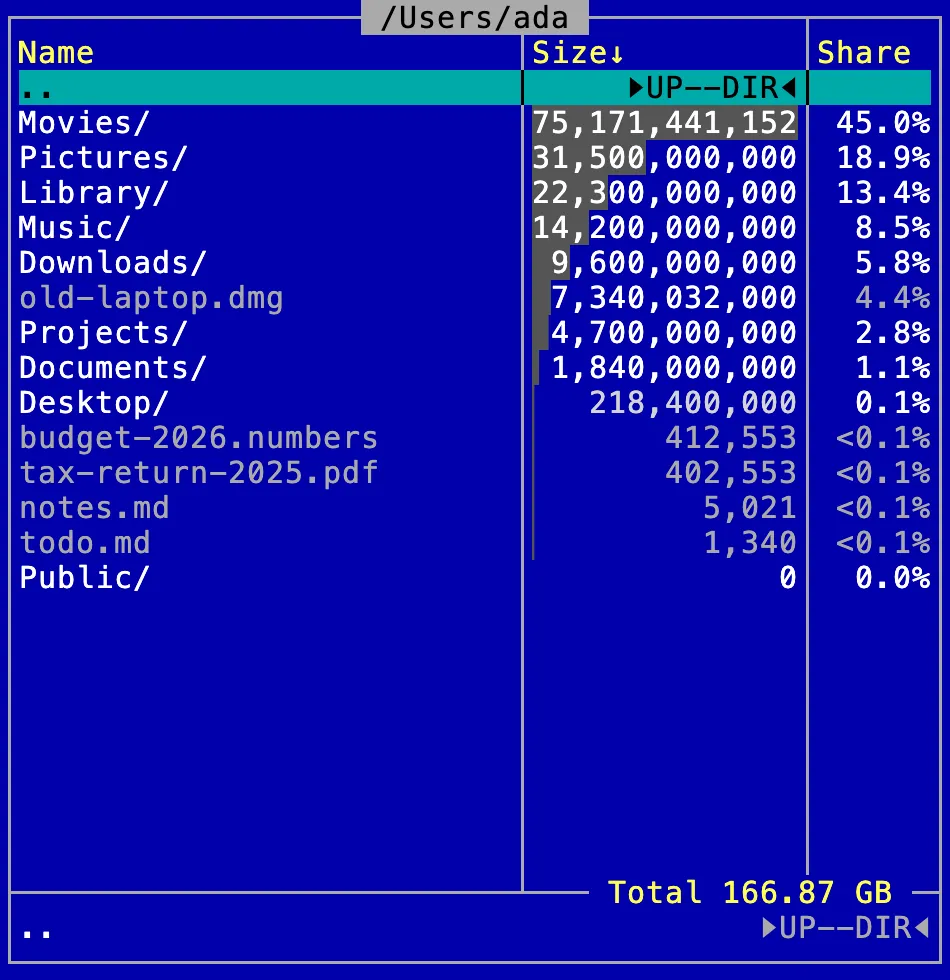
Find what takes the space. ⌃U measures every folder a pane lists and puts the largest thing first, each with its share of the total. Go into a folder to follow the space down, and delete what you find where you found it. Hidden files count even when they are not shown. Clean up disk space, in the Commands menu, puts a folder tree with sizes beside the pane, and the tree's numbers change as you delete.Panes · More
New
⌃L describes the row under the cursor in the other pane's place: its size, dates, owner and what each key does with it, with the disk's capacity and free space underneath. Tab puts the keyboard on it, to count a folder's size, move the row, or change its dates or permissions from beside those facts.Panes · More
A pane can show its folder as thumbnails: a grid of small pictures with the names under them, small or large. Choose it from the view menu (⌘F1) like full and brief; it is remembered for each pane.Panes · More
⌘Y opens the system's preview as a panel that stays up and follows the cursor as you move through folders and mark files. Press it again, or Esc, to put it away.Viewers
Change dates…, in the Files menu, sets when a file or folder was last written and last read, for one item or everything marked. Only a date you change is applied, and the journal can undo it.File operations · More
The full view can draw a bar behind each size, so the biggest files and folders stand out. Turn on Size bars in the view's options.Panes
Improved
A folder's size, once counted, stays while the app is open: leave the folder and come back, or look at it in the other pane, and it is still there. Going into a counted folder shows the size of every folder inside it without counting again.Panes
Back, Forward and the History list no longer fill up with folders you only passed through: a folder counts once you go to it by name, stay five seconds, or do something there.Panes
The pane that is not active shows which row its cursor is on, with a slightly lighter bar, so you can tell what a command using both panes will take.Panes
A click on the bar under a film or a recording goes to that point, and dragging along it scrubs. A click on the picture still pauses or plays.Viewers · More
A picture or a film stays visible around a menu, a dialog or a notice instead of disappearing while it is open.Viewers
Fixed
Saving a file in the editor keeps its permissions, owner and attributes, so a script stays executable. Saving the clipboard over an existing file keeps them too.Editor · More
A key pressed with ⌘ or ⌃ that does nothing no longer types its letter into a quick search, a field, the editor or a menu. Characters made with ⌥ are typed where text is written, a field, the editor, the command line and the terminal, and no longer into a quick search or a menu.General
A file-types row can name its application by name alone, such as TextEdit, again, and not only by its full path.Settings
0.12.0Bulk rename, comparing two files, and the keys for where you are
Rename many files at once with every name shown before and after, compare two files line by line, and press F1 for the keys that work in what is in front of you.
In the text viewer, ⌥← and ⌥→ now go to the previous and next file, as they do from a picture or a document. They used to scroll sideways along lines that are not wrapped; ← and → still do.Viewers · More
In the user menu, E no longer opens the form that edits the menu, so a command of your own can sit on any letter. Press ⌥F9 again for the form. The last row shows that key, and is no longer cut short.General
Highlights
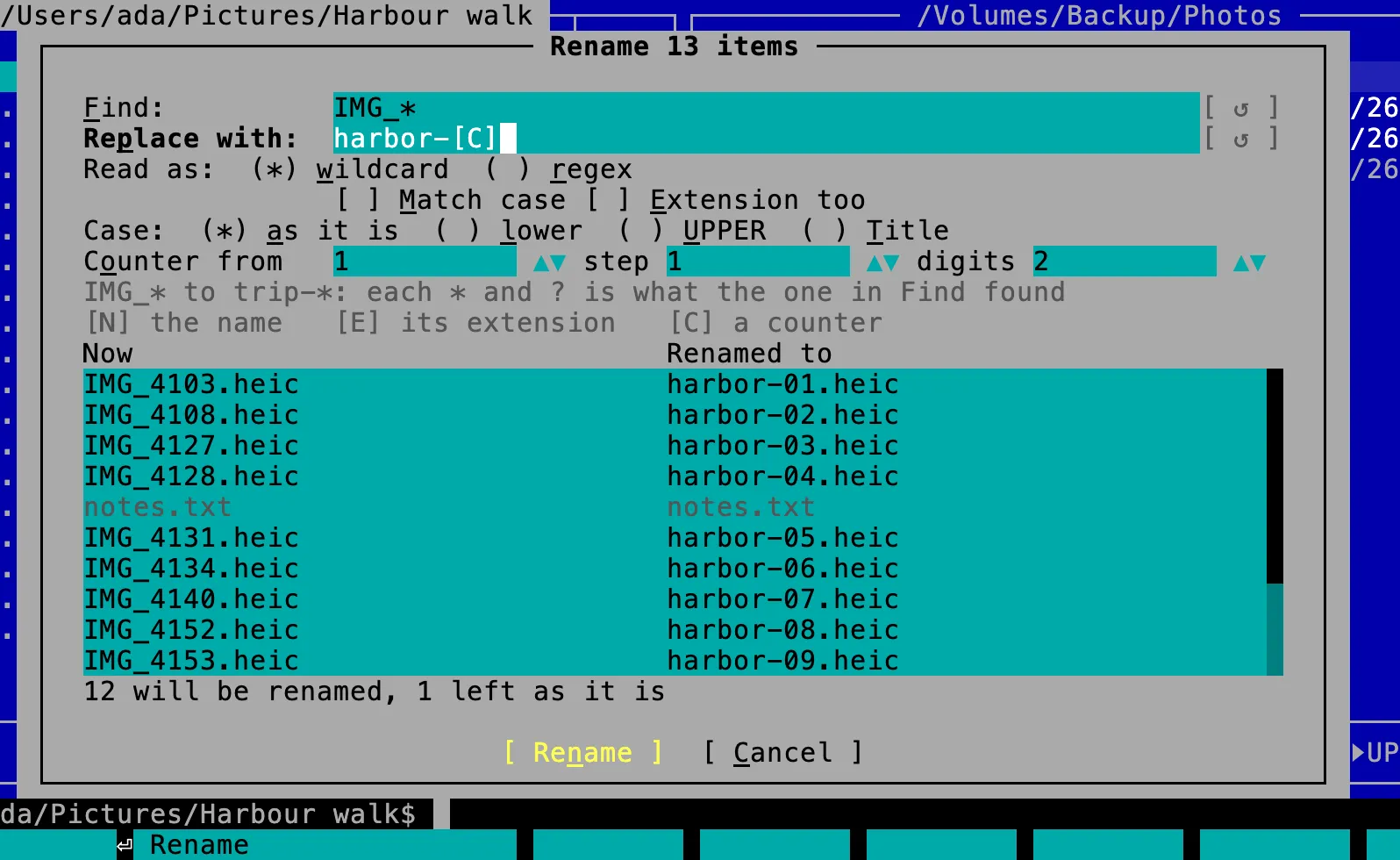
Rename many files at once. ⇧F2 renames many files in one go, and so does F2 with files marked. Type what to find and what to replace it with, as a wildcard or a regex, and every name is shown before and after as you type. A counter and a change of case can go in the new names. Nothing is renamed over another file: a name that is taken stops the whole rename before it starts.File operations · More
Compare two files. ⌥F3 shows what differs between two files, line by line, with the changed part of an edited line marked. It offers the file in each pane, or two marked in one, and either can be changed. White space is ignored until F6 says otherwise, and ⇧F6 swaps the two sides.Viewers · More
Help for what is in front of you. F1 opens on the help page about what is showing, such as the page about tables over a table, and that page starts with a short list of the keys that work there. Pictures, documents, films, recordings and certificates each have a page of their own.General
New
In the text viewer, drag to select text, double click for a word and triple click for a line. ⌘A selects the whole file and ⌘C copies what is selected.Viewers · More
Saving a JSON, YAML, XML or property list file that no longer reads as one asks first, and says the line and column of the mistake. Enter goes there, and Save anyway writes the file as it is.Editor · More
Settings has a Key bindings page that opens the key bindings screen. A key you have put on two commands that could both act always asks which you meant.Settings
Improved
A move within one disk is instant where it used to copy first: onto a name that is taken, whether you choose Overwrite or Rename and keep both, and into a folder of the same name, for everything with nothing in its way. Such a move stopped partway has already moved what it got to, whatever Move removes originals says.File operations · More
Stepping from a picture or a document stops at plain text files, shown as text, instead of passing them. Wrapping and line numbers carry from one text file to the next.Viewers · More
Get Info (⌘I) on a folder says how much room it takes on disk when that differs from its size. For a folder synced with a cloud service, it also says how much of it is downloaded.Panes
The journal says how many steps of a copy or move can still be undone when only some of them can.File operations
The menu ⌘Enter opens no longer repeats a line: two keys that would do the same thing to a file share one line that shows both.Panes
When a file cannot be opened or edited in another application, the message says why: no application for it, the file is gone, or access was refused. Reveal in Finder, Quick Look and opening an external terminal say when they could not do it, where the key used to seem to do nothing, and so does a clipboard that cannot be read or written.General
Fixed
With fish as the shell, a prompt as wide as the terminal no longer makes the app think something is always typed at it, so Esc twice at an empty prompt goes back to the panes as it does with zsh and bash.Terminal · More
A dialog too tall or too wide for the window keeps its buttons in view: it narrows, its lists and text boxes get shorter, and it scrolls when that is not enough. File types, Key bindings, User menu and Checksums fit an 80-column window, and Send Feedback and Report a Problem can be sent at any window size.General
After Check for Updates, the window offering a new version opens in front instead of behind the main window.Updates
Replacing a file in a read-only folder asks whether to replace it once, not twice.File operations
Searching a notebook, or a JSON, XML, YAML or property list tree, no longer freezes the window on a slow pattern. It says Searching…, and says so when the pattern took too long.Viewers
In the text viewer with wrapping on, a search result is no longer left just below the screen, End and scrolling show every row of a wrapped line when line numbers are on, and a search mark no longer stays after the encoding changes.Viewers
Stepping to the next or previous item in a viewer asks before showing one marked as sensitive, as opening it does.Viewers
A web page that cannot be shown opens as text instead of a blank screen, and clipboard content that could not be made ready for viewing is tried again when you come back to it.Viewers
0.11.0Permissions, read-only folders, and sizes like Finder's
Change permissions from the panes, delete and move out of read-only folders after one question, and read sizes counted the way Finder counts them.
A size typed into Find files (⌘F) counts in thousands like the panes, so >1M now matches from 1,000,000 bytes. Write >1MiB for the old count.Search · More
Highlights
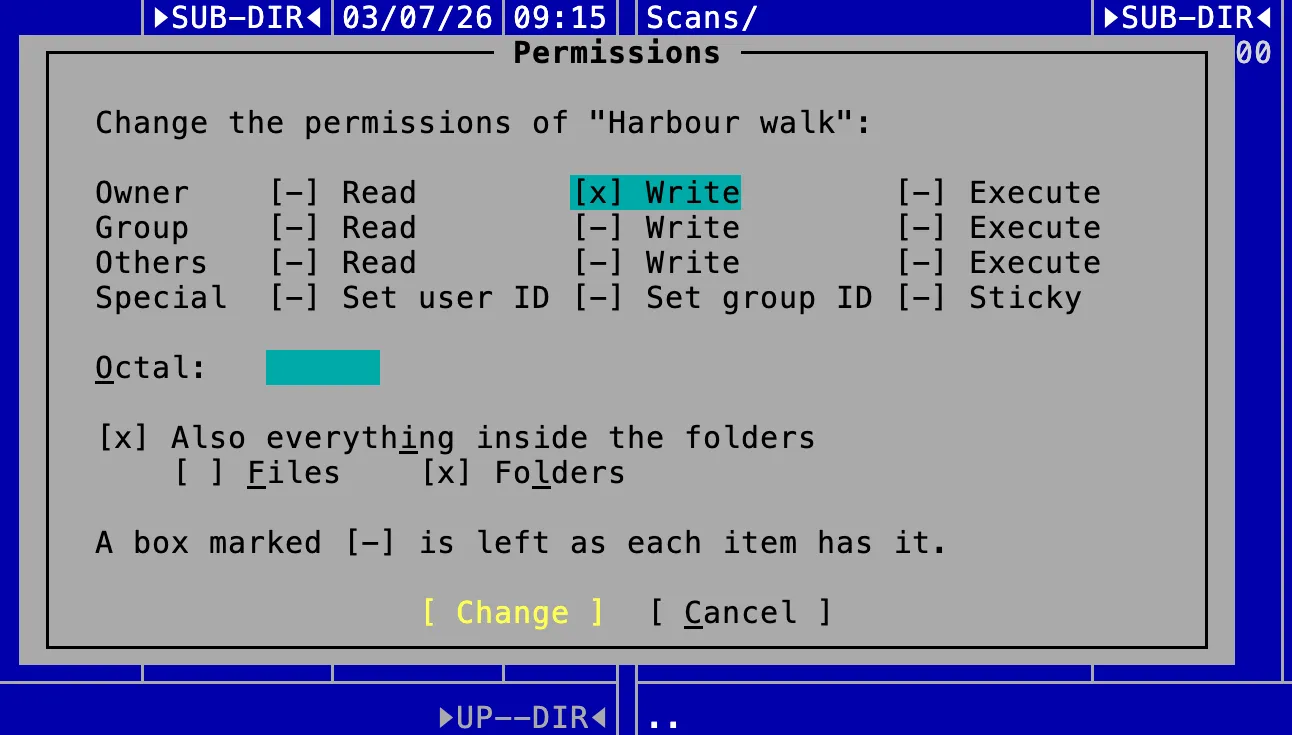
Permissions, from the panes. ⌃A changes who can read, write and run the files and folders you selected, and everything inside a folder if you ask for it. Each change goes in the journal with the permissions before and after.File operations · More
Read-only folders ask instead of failing. Deleting a read-only or locked folder, or moving files out of one, asks once whether to go ahead instead of failing on everything inside it. Copying or moving into one asks too. A folder that stays is read-only again afterwards, and a locked file arrives locked.File operations · More
Sizes counted like Finder's. Sizes count in thousands, as Finder and the label on the disk do. A column shows every byte where there is room and rounds the whole column where there is not, with larger units in brighter colors. Sizes under Panes picks exact or rounded.Panes · More
New
If you send crash reports, the app now also reports something you were waiting for that never arrived while the app went on responding: a file that stays on Reading…, a folder that never lists, a copy that stops moving. The report says what was waiting, for how long, where in the program its work was, and roughly how big the thing was and what kind of disk it is on, never its name or where it is. With Ask each time, it is kept and offered at the next start with the rest.Reports and privacy · More
Improved
A long name is shortened in the middle and keeps its extension, so files that start alike, such as camera photos, can be told apart. The line under the list shows the full name.Panes · More
Finding files by what they hold, and searching in the viewer for something that is not there, are much faster.Search
The wheel scrolls the text viewer, and the key bar can be clicked in every viewer and the editor.Viewers
A certificate bundle or .p7b file shows every certificate with its fingerprints in full, and an animated picture stops after the number of loops it asks for. A TIFF of several pages shows its first.Viewers
Text that does not fit in a menu, a dialog, the viewer's top line or the status line ends or starts with … instead of being cut off without a sign.General
Fixed
Moving files out of a read-only folder no longer leaves a copy at the destination and the originals where they were.File operations
A move that skips a folder because of a name clash leaves that folder where it was, and no longer reports it as moved.File operations
A click anywhere in a pane, including the empty space below its files, makes it the active pane.Panes
A file that cannot be shown says so, or opens as text, instead of staying on Reading…. The same goes for a search in a table or a diff that fails, a PDF page that will not draw, and a terminal tab whose shell did not start.Viewers
Opening a file in the editor no longer freezes the app when the file cannot be read, such as one on a server that has stopped answering. The editor says it is opening, and Esc closes it.Editor
Choosing Save when you leave the editor with changes closes it, commenting a line no longer uncomments it when the editor is slow to highlight it, and a match found in the editor shows a couple of lines below the top instead of on the bottom row.Editor
Stepping through files in a viewer no longer skips programs.Viewers
A match that comes after a long run of bytes that are not text is no longer missed, and Spotlight (⇧⌘F) says so when a search of everywhere comes back empty because nothing is indexed.Search
A file that cannot be opened or edited with its own app says so on screen, a SHA-256 checksum shows on one line, and a few messages and help pages name the right keys.General
0.10.0Better updates, date formatting, and fixes
Choose how dates are written, see what changed after each update, and a settings file with a mistake in it is kept instead of replaced.
Inside the terminal, ⌃O now goes to the program you are running (nano saves on it) and no longer brings the panes back. Use ⌃⌘O or ⌥⌘O to go back to the panes; over the panes, ⌃O still opens the terminal.Terminal · More
Highlights
What's new, after every update. The first start after an update shows what changed since the version you had, with links to the full notes, known issues and what was recently resolved.Updates
Dates your way. *Date format* under Panes writes dates the way your Mac's region does, or in one of seven fixed formats. The panes, search results and file information all follow.Panes · More
New
F3 shows TGA and JPEG XL pictures, and Enter on an MKV, WebM, Ogg or MIDI file opens it in its own app.Viewers · More
If you send crash reports, the app now also reports a freeze (five seconds or more without responding) with how long it lasted and where in the program it was stuck. With *Ask each time*, errors and freezes are kept and offered at the next start along with crashes, and the same error is reported at most once a day.Reports and privacy · More
Report a Problem… links to known issues and to what was recently resolved, so you can see whether yours is already there.Reports and privacy · More
Improved
A terminal beside a pane takes a paste of several lines.Terminal
Report a Problem… opens at once and reads the logs while you write.Reports and privacy
Fixed
A mistake in a hand-edited settings.json or key-bindings.json no longer gets the file replaced. The app says the file was not read, keeps it under a new name beside the original, and runs on the defaults until you fix it.Settings · More
A restore that cannot start says why, and one interrupted partway is finished the next time the app starts.Settings
The viewer no longer stays on *Reading…* when you go to the end of a file, and End shows the last line.Viewers
With files marked, F4 edits the file under the cursor.Panes
Enter on a Windows program offers the menu instead of opening it in the editor, a film with only sound says so, and a notebook that starts with a byte-order mark opens as a notebook.Viewers
Notices wrap long paths, no longer cut an emoji in half, and stack without overlapping.General
Smaller fixes to the Actions list, which grays what cannot run where you are, to messages that name a key, which now name the one you have bound, to the keys of the JSON tree editor, and to the About window.General
0.9.1Safer copies, quieter in the background
Moving or renaming can no longer delete a file, copies keep their permissions and dates, and the app no longer keeps a processor core busy.
With *Write settings* set to *when asked*, quitting no longer writes settings.json, and neither does closing File types…. Use *Save settings* in the Options menu before you quit to keep what you changed.Settings · More
Highlights
In short. Fixes to copying, moving and renaming, a freeze when viewing an empty file, and the app keeping a processor core busy.General
Improved
Enter on a disk image hands it to macOS to mount, and on an installer or a Java archive offers the menu, instead of saying it is not built yet.Panes
When a report or feedback cannot be sent, the app says why and offers to save it as a file you can email to us. Nothing you wrote is lost.Reports and privacy · More
Crash reports no longer include when your Mac was last started, and the privacy policy now lists everything the app, the report service and the website send.Reports and privacy · More
Fixed
Northern Commander no longer keeps a processor core busy while it sits open.General
Moving a file onto itself through a linked folder, or renaming it on a case-sensitive disk to a name that differs only in capitals from a file already there, is refused instead of losing a file.File operations
Copying or moving a file keeps its permissions and the date it was created.File operations · More
Esc asks before stopping a copy, move or delete, and a question the operation asks partway through has a Stop button of its own.File operations
A mistake left in a hand-edited user-menu.json or favourites.json no longer gets the file overwritten; the form says which line is wrong. A misspelled whenSelected asks before running the command, and the user menu's key opens its form even after you move it to another key.Terminal
Opening an empty file with F3 no longer freezes the app.Viewers
Smaller fixes to the viewer's status bar, the key bar, the move and delete dialogs, the cursor when a pane refreshes, removing old backups, and keys edited by hand.General
0.9.0The first release
Northern Commander's first release: a two-pane file manager for the Mac, run from the keyboard, with a viewer, an editor and a terminal built in.
Two panes, and a key for everything. Folders side by side, the key bar along the bottom saying what each function key does where you are. Tab crosses over, F5 copies to the other side.Panes · More
See inside anything. F3 shows a file as what it is: pictures and PDFs as pictures and pages, videos with sound, tables as tables, JSON and XML as trees, and anything else as text or bytes.Viewers · More
A real terminal, one key away. ⌥⌘O puts your shell over the panes and ⌥⌘O again brings the panes back. Tabs, scrollback, and a command line that takes names straight from the panes.Terminal · More
New
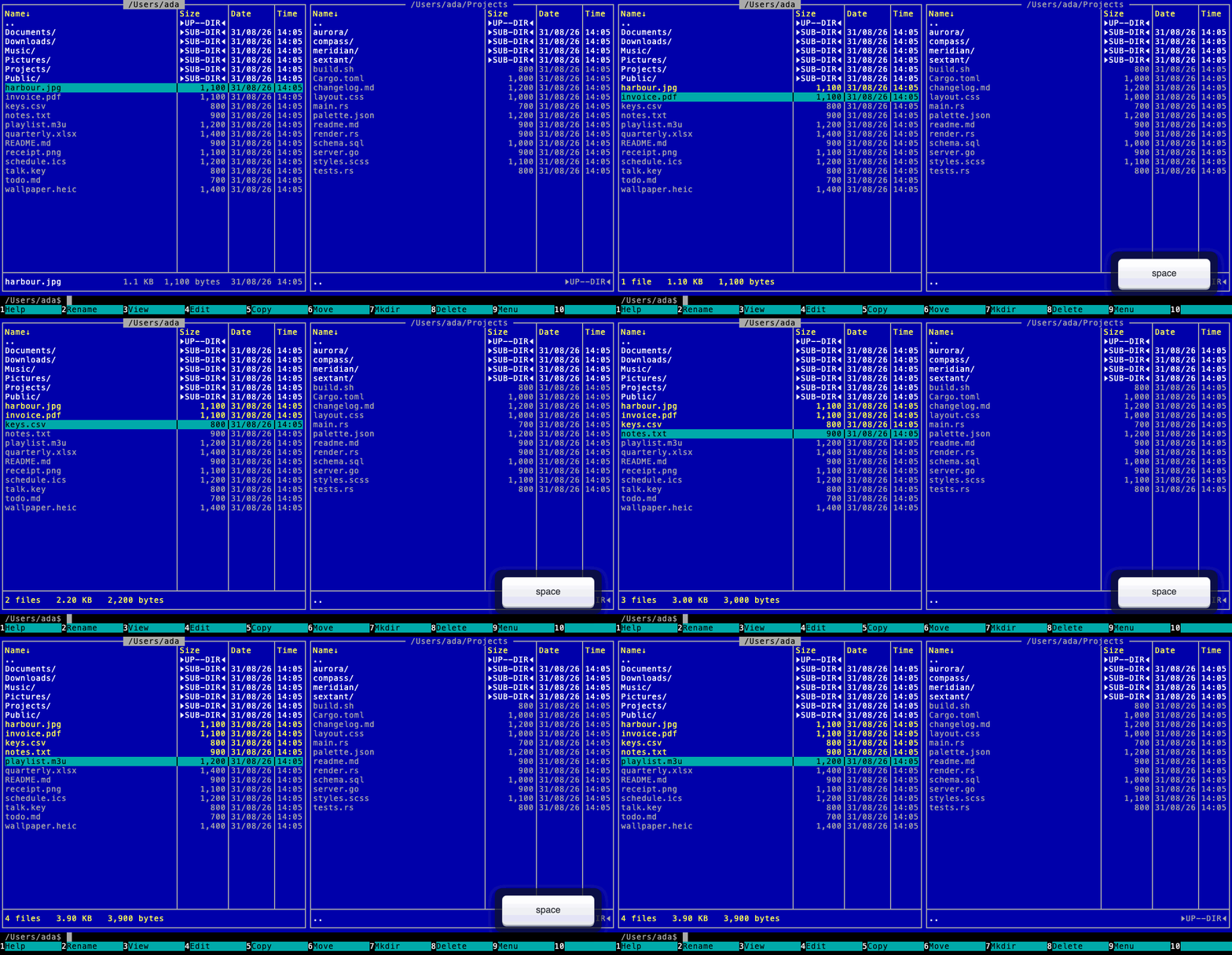
Mark files with Space — it moves on as it marks, so holding it marks a run — or by pattern with +. Whatever is marked is what the next operation acts on.Panes · More
Copy, move, rename and delete run in the background with progress you can check on (⌘J) and a journal of everything done (⇧⌘J).File operations · More
Keep a folder as a favorite with ⌘D; the first nine are ⌘1 to ⌘9.Panes · More
The clipboard is a pane: every form of what was copied, to view, edit and save as files. ⌃V opens what is on it in the viewer or the editor.Panes
F4 opens a text editor with column blocks, folding, bracket matching and commenting, and edits JSON, YAML and XML as trees and CSV as a table without touching a byte you did not change.Editor · More
⌘F finds files by name or by what is in them, and ⇧⌘F asks the system's own index instead.Search · More
File types… says what Enter, F3 and F4 do for every kind of file, and lets you change any of it.Viewers · More
⌥F9 holds commands you write yourself, each on a letter of its own, with words that stand for the marked files and the panes' folders.Terminal
Key bindings… puts any command on the key you want, and keeps only what you changed in a file you can share.Settings · More
Every setting has a page of its own in the settings reference, and ~/.northern-commander/settings.json comes with a schema your editor can check it against.Settings · More
Backups… keeps your settings, keys, commands, favorites and histories in one zip file, by hand or on a schedule, and shows what a restore would change first.Settings
Crash reports and usage reports are off until you agree, and both go to servers in the EU. Report a Problem… and Send Feedback… reach us privately.Reports and privacy · More
It checks for new versions itself once you say it may, and Check for Updates… asks at any time.Updates · More
 Northern Commander